{success} This Feature only available in Webworks Co FullyLoaded
Stripe Connect Integration (FullyLoaded)
Webworks Co FullyLoaded offers Stripe Connect integration—enable direct payouts to organizers, simplified setup, and global reach for your event platform.
- Direct Payouts:
- Send ticket revenue directly to organizers' Stripe accounts
- Reduce admin overhead and speed up settlements
- Simplified Setup:
- Easy onboarding for new organizers
- No need for complex marketplace configuration
- Global Reach:
- Accept payments and send payouts worldwide
- Support for multiple currencies and countries
- Use Cases:
- Multi-organizer platforms with direct revenue sharing
- Agencies managing client events
- Organizers seeking fast, automated payouts
Stripe Connect Payment (Split Payments) for Webworks Co FullyLoaded
Enable Stripe Direct Payment to automate split payments between event organizers and admin in your Webworks Co FullyLoaded Laravel event management platform. Organizers receive their event earnings and admin receives commission directly into their respective Stripe accounts, ensuring fast and secure payouts.
With Stripe Connect, when a customer purchases a ticket, the organizer instantly receives their share (Organizer Earning) in their Stripe Account, while the admin receives their commission and tax (Admin Commission + Admin Tax) in the admin Stripe Account.
We have integrated the Stripe Connect Payment Gateway for seamless split payments.
The Admin Stripe Public Key and Stripe Secret Key are the same as those used for Stripe 3D Secure Checkout. If you haven't enabled Stripe 3D Secure Checkout, create a Stripe Merchant Account at Stripe, then copy your Stripe Public Key and Stripe Secret Key.
Organizers must sign up for a Stripe account and connect their Stripe profile on your website to start receiving direct payouts.
Admin Setup: Enable Stripe Connect Payment
Admin should follow these steps to enable Stripe Connect split payments:
- Go to Admin Panel -> Settings -> Apps
- Enter your
Stripe Public Key&Stripe Secret Key - Turn on
Stripe Directand click Save Settings

You can use Stripe Test keys to test payments with Stripe Test Cards, or Stripe Live keys to accept real payments.
Organizer Setup: Connect Stripe for Direct Payouts
Organizers should follow these steps to start receiving payouts directly into their Stripe account:
- Login as Organizer and go to
Profile - Click on Connect with Stripe
- You will be redirected to Stripe; follow the steps to connect your account.
- Once connected, you will see the Stripe Connected button, confirming successful setup.
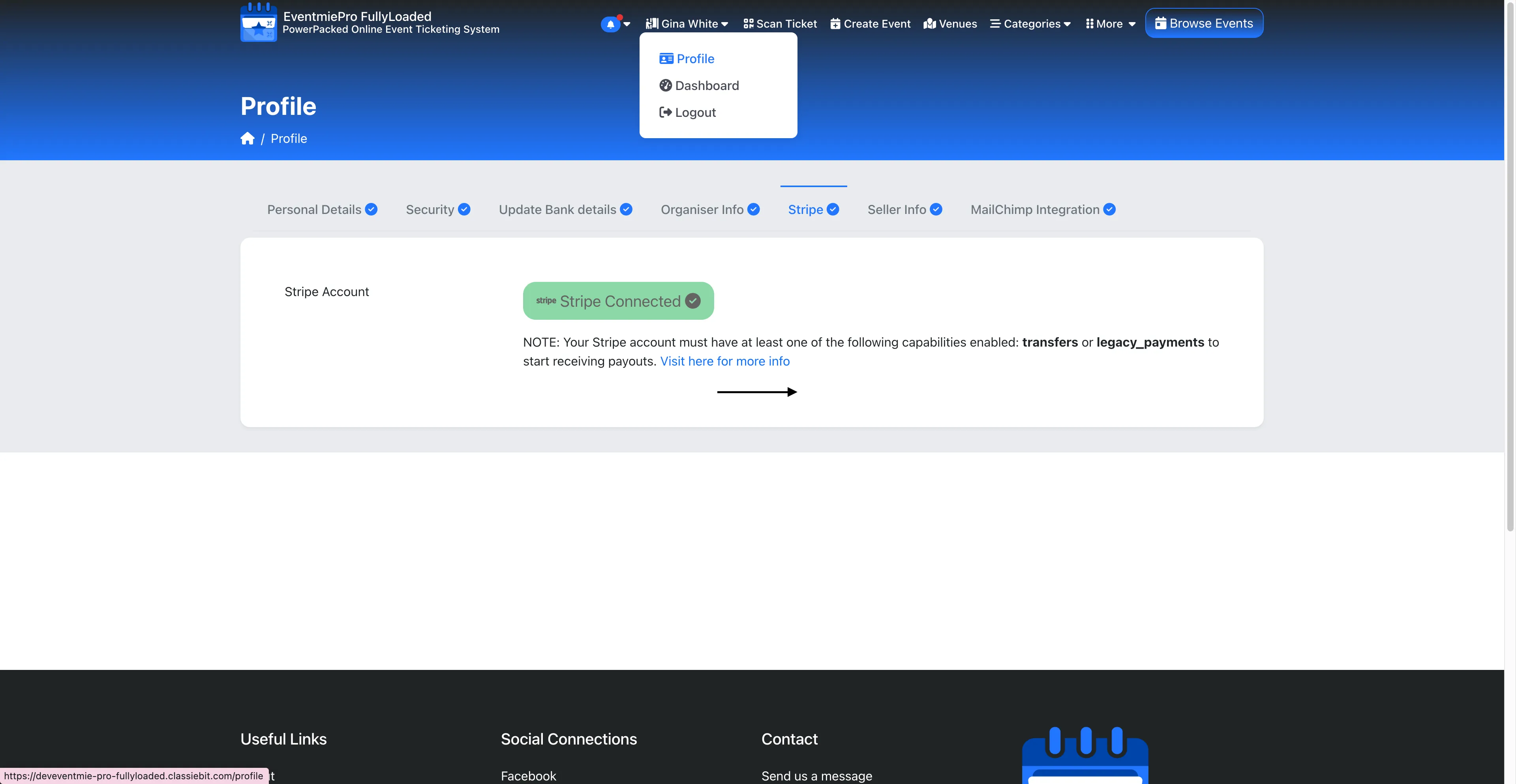

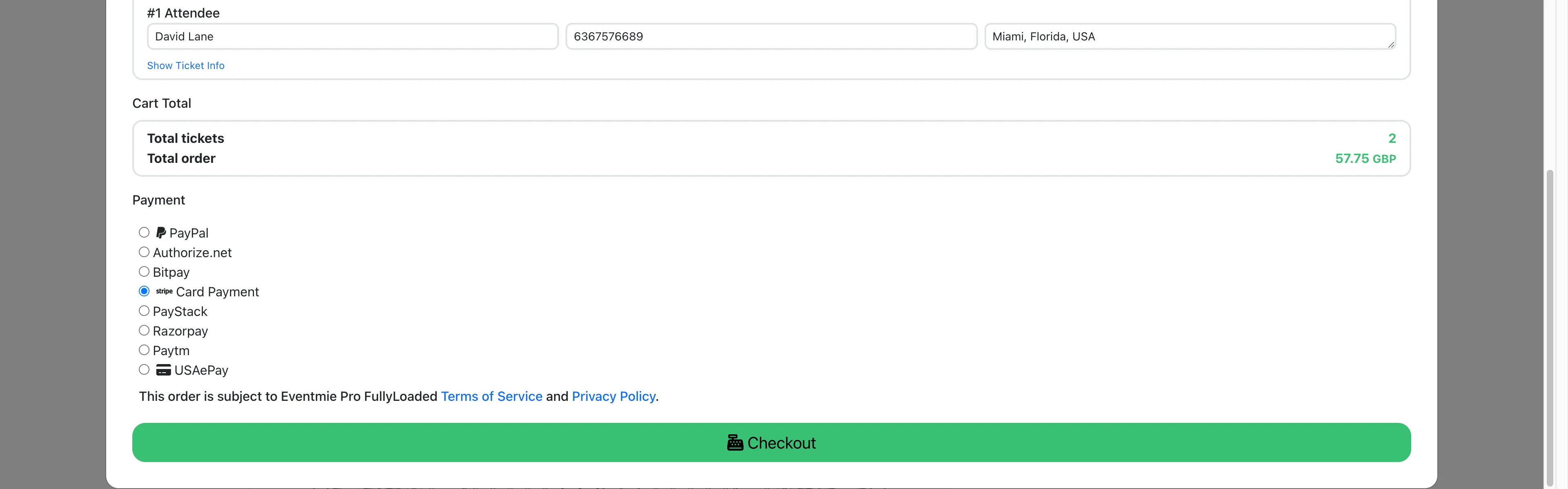
If the Admin has entered Stripe Test keys, the Organizer can connect a Test Stripe account. With Stripe Live keys, the Organizer can connect a Real Stripe account for live payouts.
Admin Payout: Automated Commission & Payouts
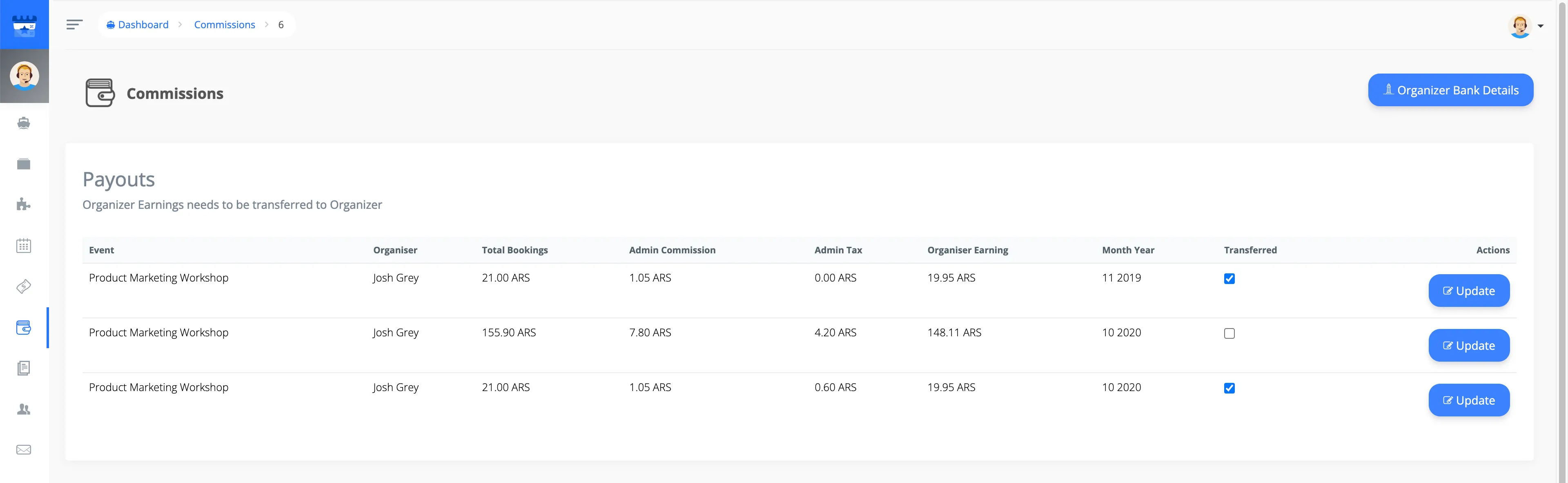
With Stripe Connect, both Organizer and Admin receive direct payments into their bank accounts via Stripe. Payouts and admin commission processing are fully automated for efficient event management.
Admin will see the Transferred status as Checked in the Admin Commission section.
Organizer Payout: Manage Earnings
If the Admin has enabled Stripe Direct/Connect but the Organizer has not connected their Stripe account, all payments will go to the Admin Stripe account. The Admin will then need to transfer the Organizer's payment manually via an external method.
Organizer will see the Transferred status as Paid in the Manage Earnings section.

{primary} To disable Stripe Direct/Connect, simply turn off the
Stripe Direct/Connectcheckbox in your Admin Panel settings.