AI Event Creation
Webworks Co brings a game-changing Event Creation feature designed for event organizers and planners. Whether you're hosting a community gathering or a large-scale conference, you can now plan and launch your event in just minutes using a simple description. This tool is available for both Webworks Co and Webworks Co FullyLoaded platforms.
Overview
The AI Event Creation feature allows you to quickly set up events by simply describing them in plain language. For example, you can type:
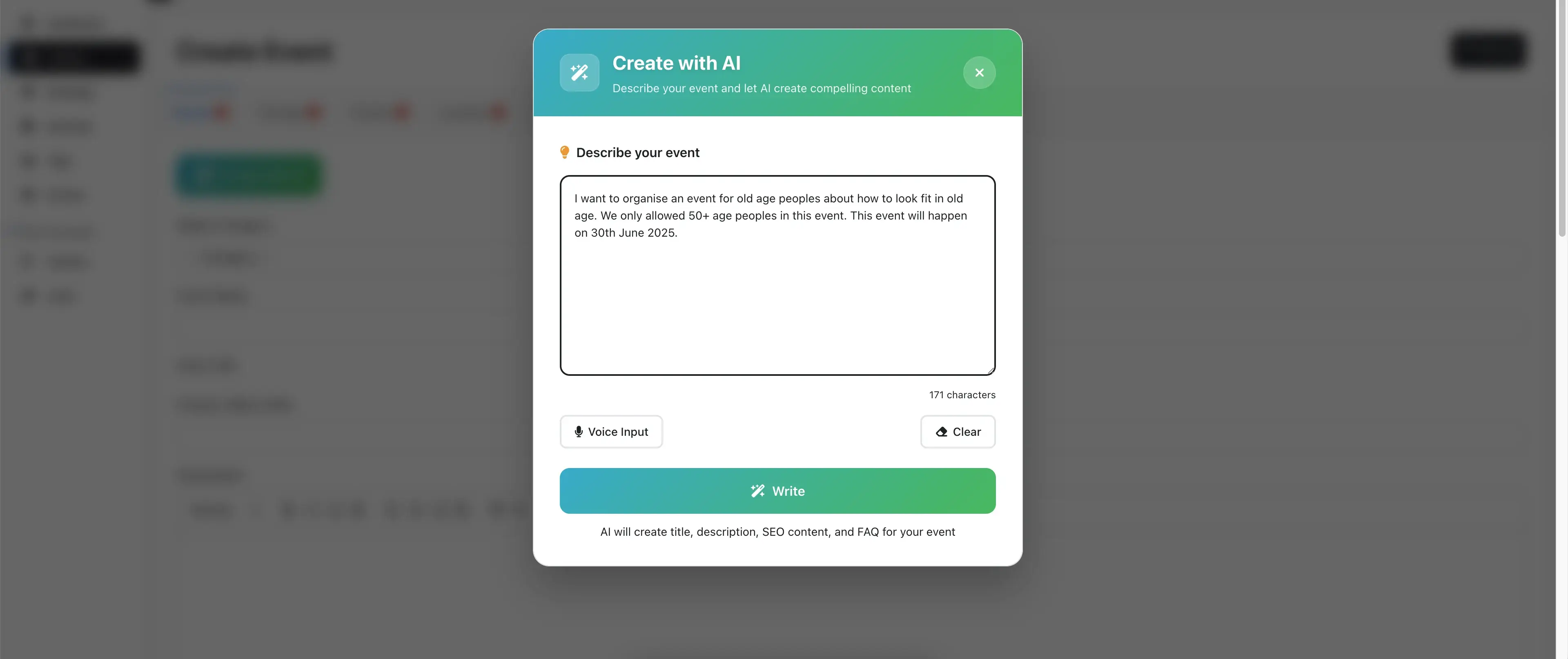
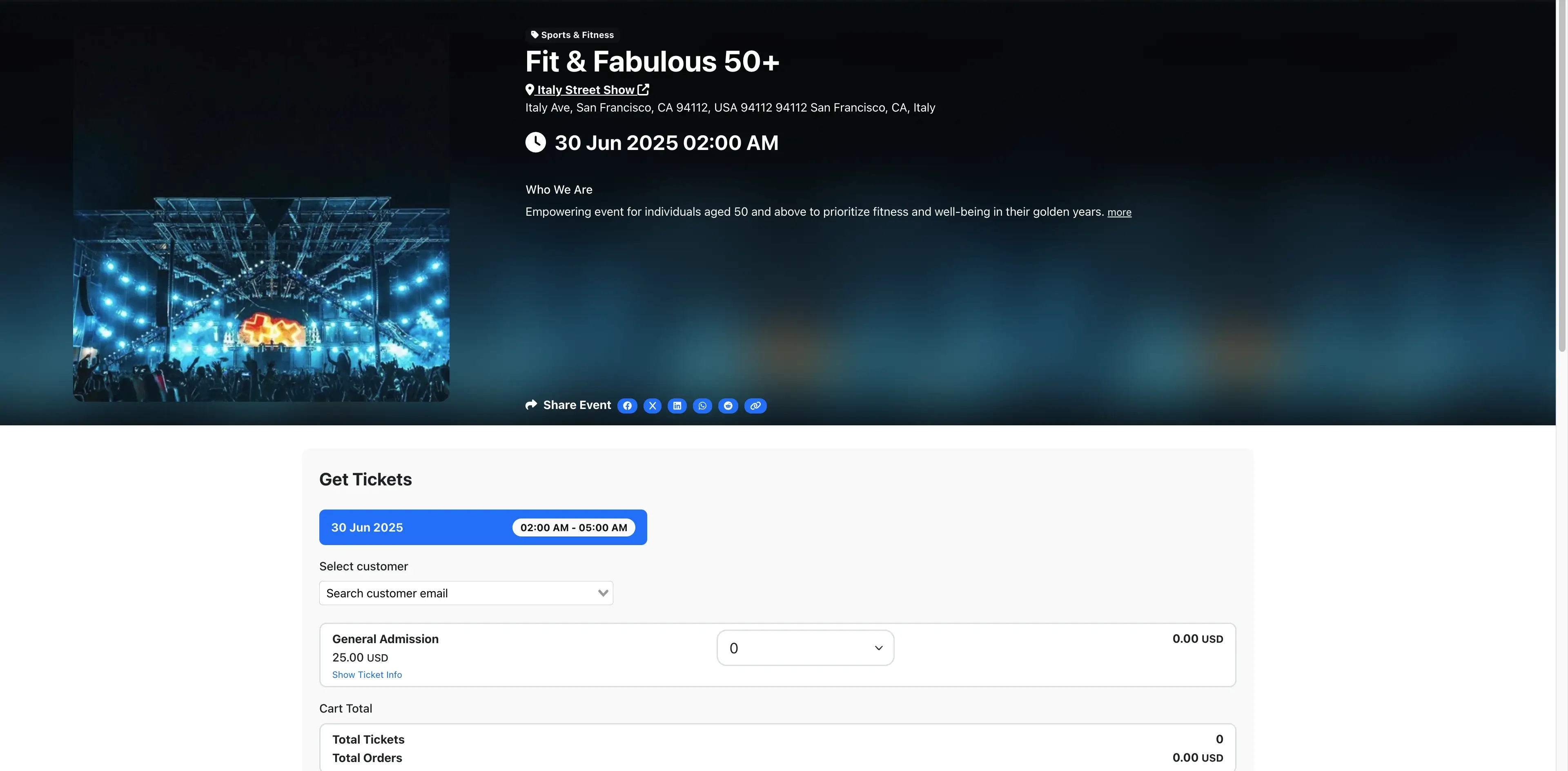
Example Prompt: "I want to organise an event for old age peoples about how to look fit in old age. We only allowed 50+ age peoples in this event. This event will happen on 30th June 2025."
How It Works
Step 1: In your organizer dashboard, go to the events section, click "Create Event," and then select Create With AI to start planning your event.
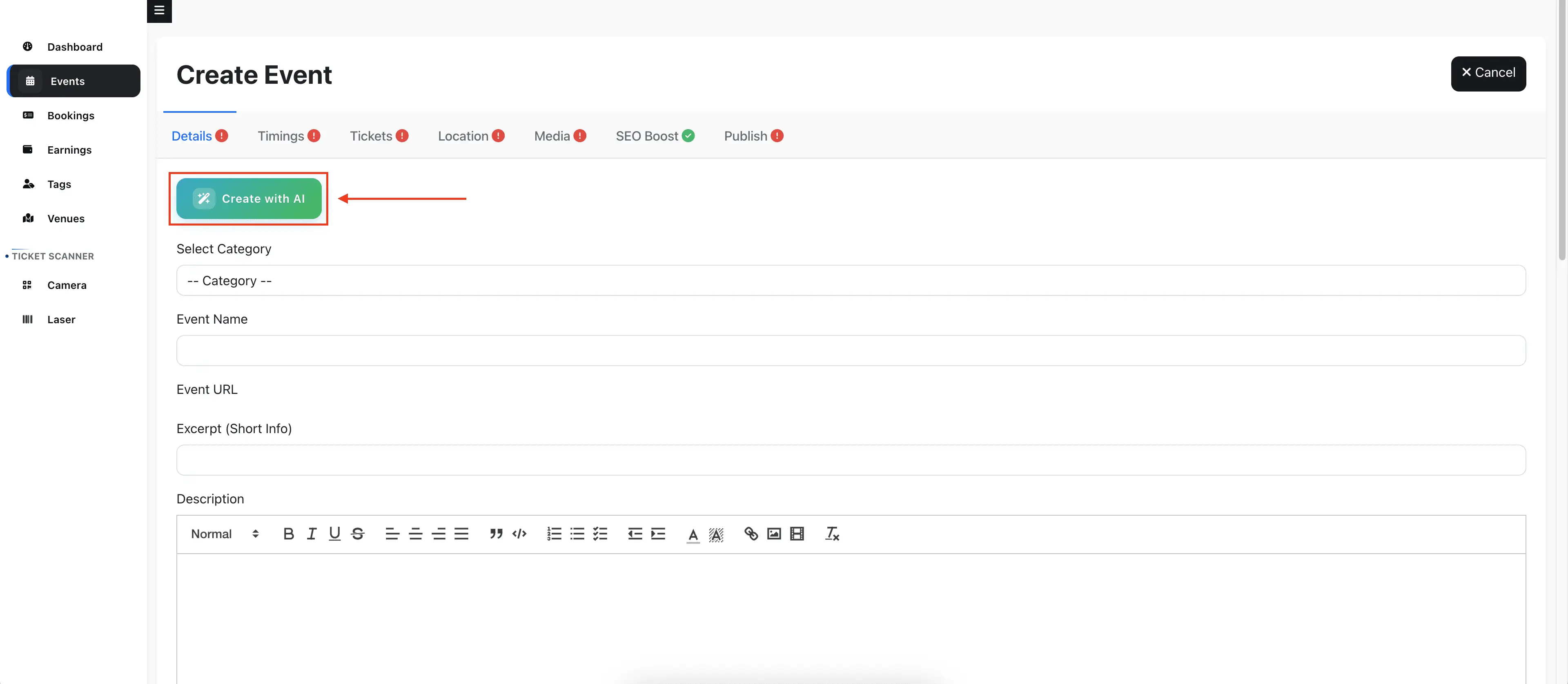
Step 2: A pop-up will appear. Enter your event details or description here.
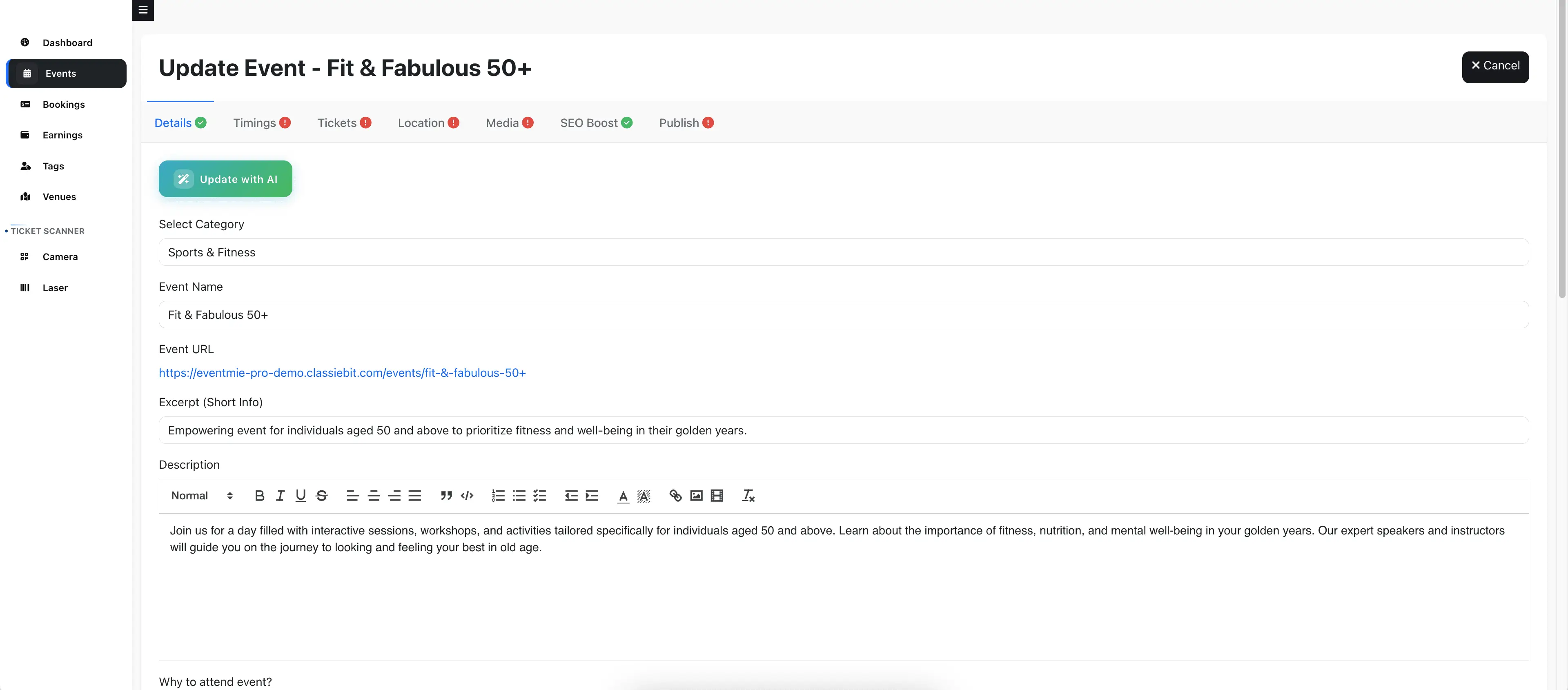
Step 3: Instantly, you'll see your event's name, web link, summary, description, and highlights—all created for you.
Step 4: Fill in the remaining details, such as event schedule, ticket options, venue, images, and promotional settings. Then publish your event.
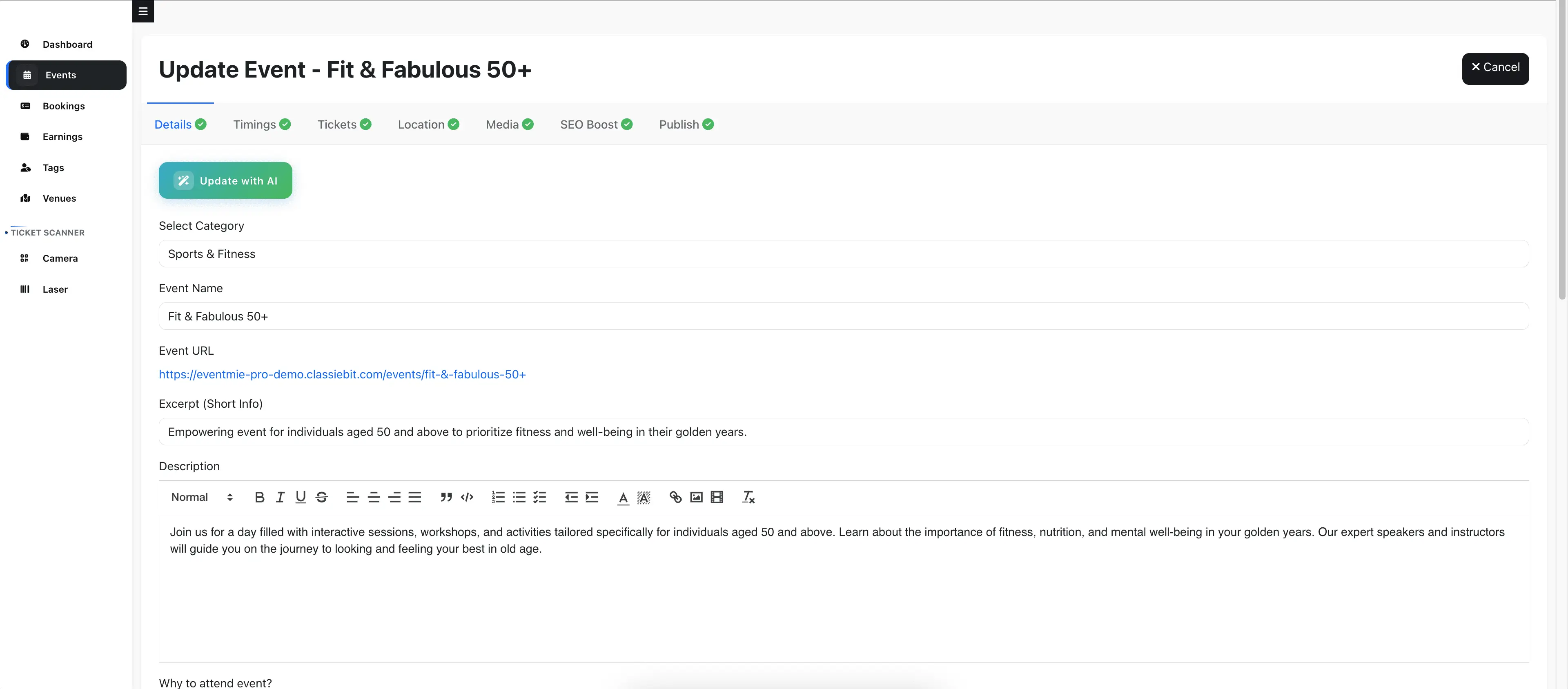
Step 5: Congratulations! Your event is now live and ready for guests to discover and book.
Ideal For
- Event agencies
- Exhibition planners
- Corporate and educational event managers
- High-volume organizers
Professional Features
- Tailored event planning: Share details like "venue for 500 guests, breakout rooms, hybrid streaming, catering," and the system helps you map out sessions, seating, venue layout, registration, and sponsor options.
- Smart ticketing: Get suggestions for ticket types (Group, Early Bird, VIP, Add-ons), pricing, discounts, and waitlists.
- Built-in promotion & tracking: Receive ready-to-use event descriptions, marketing ideas, and tools to monitor bookings, guest lists, and sales.
Workflow
- Describe your event: For example, "Plan a 2-day expo with keynote, workshops, virtual booths, and networking."
- Get your event plan: Instantly receive agenda, sessions, ticket options, streaming setup, floor plan, sponsor packages, and guest capacity.
- Customize further: Use FullyLoaded's advanced tools to fine-tune sponsorships, seating, livestreams, and access codes.
- Publish & track: Launch your event and monitor registrations, venue attendance, ticket sales, and online engagement from your dashboard.
Suitable For
- Large conferences, corporate events, educational summits
- Agencies and enterprises needing faster event planning, better revenue, and smooth guest experiences
Availability
- Available in Webworks Co FullyLoaded . This is a premium, advanced event planning workflow for professionals who want full control and automation.
Add your OpenAI key in Webworks Co
- Open the Admin Panel → Settings → AI
This is where you connect your OpenAI key to power “Create with AI.”

- Paste your OpenAI API Key and Save
Use a key from your OpenAI project, then click Save Settings to enable AI features.

How to get an OpenAI API key (current UI)
-
Create or sign in to your OpenAI account
Go to the platform and sign in (the same account you use for the Playground).
OpenAI Platform -
(Recommended) Create a Project for Webworks Co
In the left sidebar, open Settings → Projects and click New project (for example, “Webworks Co-Prod”).
Projects help you keep keys organized, set budgets, and separate production from development.
OpenAI Platform -
Set up billing (once per organization)
Open Settings → Organization → Billing and add a payment method. OpenAI Help Center -
Create the API key
In the left sidebar, open API Keys → choose the right Project → click + Create new secret key.
Give it a clear name (for example, Webworks Co-prod-server). You can choose permissions (All / Restricted / Read-only), then Create.
Copy the key once and save it in your secure vault—you won’t be able to view it again.
OpenAI Platform · OpenAI Help Center -
Lock it down and organize
Prefer Restricted keys for tighter control and turn off anything you don’t use.
Create separate keys for development, staging, and live environments, and separate by service if you want clearer cost tracking.
OpenAI Help Center -
Set usage limits and budgets (optional but smart)
In Project → Limits, set a monthly budget and request limits to prevent runaway costs.
OpenAI Help Center -
Review data controls (optional)
In Settings → Data controls, review whether your organization shares evaluation or feedback data and adjust per project or organization as needed.
OpenAI Platform · OpenAI Help Center