Settings
Begin by configuring the global settings for Webworks Co & FullyLoaded to ensure your event management platform is tailored to your brand, business needs, and user experience. All essential settings are managed from the Admin Panel, giving you full control over your platform's appearance, functionality, and integrations.
Platform Configuration
- General settings: site name, logo, contact info
- Domain and URL management
- Maintenance mode and system updates
Branding & Localization
- Custom themes, colors, and branding
- Multi-language and multi-currency support
- White-labeling options (FullyLoaded)
Payment & Financial Settings
- Configure payment gateways (Stripe, PayPal, MercadoPago, etc.)
- Set commission rates and payout schedules
- Manage tax and invoicing options
Notification Settings
- Customize email, SMS, and WhatsApp notifications
- Set up automated reminders and alerts
- Manage notification templates
{primary} To access Settings, log in as Admin and navigate to
Admin Panel -> Settings
{warning} Please carefully read and follow the guidelines provided below each setting for optimal configuration.
- Site
- AI (OpenAI)
- Storage
- SEO
- Social
- Contact
- Booking
- Multi-Vendor
- Admin
- Payment Methods
- PayPal
- Apps
- Offline Payment
- Regional
Site
Establish your website's brand identity, app presence, and visual experience. These settings are critical for a professional, trustworthy, and conversion-optimized event platform.
| Setting Name | Type | Description & Best Practices |
|---|---|---|
| Brand Name | text |
Your platform or business name. Appears in the header, emails, and browser title. Use your official brand for trust and SEO. |
| Brand Slogan | text |
A concise tagline that communicates your value proposition. E.g., "Run events your way." |
| Footer Copyright | rich-text/html |
Copyright notice and credits. You can include HTML links (e.g., "Product by WebworksCo "). |
| Brand Logo | image:jpg,jpeg,png |
Upload your logo. Recommended: square, high-resolution PNG for best appearance across devices. |
| Brand Favicon | image:jpg,jpeg,png,ico |
Upload your favicon/icon. Recommended: 32x32 or 64x64 PNG/ICO. |
| Below options are only available in FullyLoaded | ||
| Play Store URL | url |
Link to your published Android app on Google Play Store. Users will see this in the footer and mobile prompts. |
| App Store URL | url |
Link to your published iOS app on Apple App Store. |
| Default Theme | select (Auto, Light, Dark) |
Choose the default website theme. "Auto" adapts to the user's system preference. Light and Dark force the respective mode. |
{success} Tip: Use a clear, high-contrast logo and favicon for best results. Keep your slogan short and benefit-focused. Always test your app store links after publishing.
AI (OpenAI Integration)
Unlock the power of AI-driven event creation and automation in Webworks Co & FullyLoaded by integrating your OpenAI API Key. This enables the "Create Event with AI" feature, allowing you to generate event details, descriptions, and marketing content with a single click.
How to Enable AI Features
1. Sign Up for an OpenAI Account
- Visit OpenAI Platform and create a free or paid account.
- Complete the email verification and onboarding steps.
2. Generate Your OpenAI API Key
- Log in to your OpenAI Dashboard.
- Click Create new secret key.
- Copy the generated API key and store it securely. (You will not be able to view it again.)
3. Configure the API Key in Webworks Co
- Log in to your Webworks Co Admin Panel.
- Go to Settings → AI tab.
- Paste your OpenAI API Key into the OpenAI API Key field.
- Save your settings.
4. Start Using AI-Powered Event Creation
- When creating or editing an event, use the "Create with AI" or "Generate with AI" button to auto-generate event titles, descriptions, and more.
- The AI will use your prompts and event context to generate high-quality, SEO-optimized content.
| Setting Name | Type | Description |
|---|---|---|
| OpenAI API Key | string |
Paste your OpenAI API Key here to enable AI features. |
{info} Tip: For best results, use a paid OpenAI account with sufficient usage limits. Free accounts may have limited access or rate limits.
{success} Your data is secure: The API key is only used server-side to generate content for your events. Never share your API key publicly.
Need help? See the OpenAI API documentation or contact [info@WebworksCo .com](mailto:info@WebworksCo .com) for support.
Storage
Configure where your event media files (images, videos, documents) and all user/admin uploads are stored. Choosing the right storage option is essential for scalability, performance, and data security.
| Setting Name | Type | Description & Best Practices |
|---|---|---|
| Filesystem Disk | select |
Choose where files are stored. Local: Files are stored on your server in the /storage folder. Best for small to medium sites or when hosting on a single server.AWS S3: Files are stored in your Amazon S3 bucket. Recommended for high-traffic, scalable, or cloud-hosted platforms. Enables auto-scaling and global delivery. |
| AWS Access Key ID | text |
Your AWS IAM user's Access Key ID. Required for S3. |
| AWS Secret Access Key | text |
Your AWS IAM user's Secret Access Key. Required for S3. |
| AWS Default Region | text |
The AWS region where your S3 bucket is located (e.g., us-east-1). |
| AWS Bucket | text |
The name of your S3 bucket. |
| AWS URL | text |
Custom S3 endpoint URL. |
Choosing a Storage Option
- Local:
- All files are stored on your server in the
/storagedirectory. - Simple setup, no extra cost.
- Best for small/medium sites or when using a single VPS/server.
- Limited by your server's disk space and bandwidth.
- All files are stored on your server in the
- AWS S3:
- All files are stored in your Amazon S3 bucket.
- Highly scalable, reliable, and secure.
- Recommended for large-scale, high-traffic, or cloud-native deployments.
- Enables auto-scaling, global CDN, and seamless integration with other AWS services.
- Requires AWS account and S3 bucket configuration.
{info} Best Practice: For enterprise, multi-region, or auto-scaling platforms, use AWS S3. For simple or development setups, Local is sufficient.
How to Configure AWS S3 Storage
- Create an S3 bucket in your AWS account.
- Create an IAM user with programmatic access and grant it permissions for S3.
- Enter the Access Key ID, Secret Access Key, Default Region, and Bucket name in the settings fields.
- Enter a custom AWS URL if using a non-default endpoint or CDN.
- Save settings and test file uploads.
{success} Tip: Always use strong IAM credentials and restrict permissions to only the required S3 bucket for security.
SEO
Configure global SEO meta tags to improve your website's search engine ranking and visibility.
| Setting Name | Type | Description |
|---|---|---|
| Meta Title | text |
A concise title that describes your event business |
| Meta Keywords | text |
Comma-separated keywords relevant to your event platform |
| Meta Description | text |
A brief description of your website for search engines |
Social
Connect your event management platform to your social media profiles for better engagement and brand awareness.
| Setting Name | Type | Description |
|---|---|---|
| Facebook Page Username | text |
Your Facebook page username only |
| X Account Username | text |
Your X account username only |
| Instagram URL | url |
Full URL to your Instagram profile |
| Linkedin URL | url |
Full URL to your LinkedIn profile or company page |
Contact
Provide accurate contact information for your event business.
| Setting Name | Type | Description |
|---|---|---|
| Address | text |
Your office or business address |
| Phone | number |
Official phone number |
email |
Official email address | |
| Google Map Lat | coordinates |
Latitude for your office location |
| Google Map Long | coordinates |
Longitude for your office location |
Booking
Manage global booking and event settings to optimize the attendee experience and streamline event operations.
| Setting Name | Type | Description |
|---|---|---|
| Pre Booking Time | number |
Number of hours before an event that customers can book |
| Pre Cancellation Time | number |
Number of hours before an event that customers can request a booking cancellation |
| Hide Expired Events | enable/disable |
Show or hide expired events on the event listing page |
| Max Ticket Qty Limit Per Order | number |
Maximum number of tickets per order (recommended: under 100) |
| Allow Offline Payment For Organizer | enable/disable |
Enable or disable offline payment for organizers |
| Allow Offline Payment For Customer | enable/disable |
Enable or disable offline payment for customers |
| Disable Booking Cancellation | enable/disable |
Enable or disable booking cancellation for customers |
| Disable Ticket Download | enable/disable |
Enable or disable ticket download for customers |
| Disable Google Calendar | enable/disable |
Enable or disable Google Calendar integration for customers |
{primary} Admins can always make bookings using the Offline Payment method.
Multi-Vendor
Switch between single-vendor and multi-vendor modes to control how events are managed and who can organize them.
| Setting Name | Type | Description |
|---|---|---|
| Multi Vendor | enable/disable |
Enable or disable the multi-vendor feature |
| Admin Commission | number |
Set your commission percentage (must be a positive value) |
| Verify Email Before Login | enable/disable |
Require users to verify their email after signup |
| Publish Event After Admin Approval | enable/disable |
Require admin approval before events go live |
| Manually Approve Organizer | enable/disable |
Require admin approval for customers to become organizers |
| Guest Checkout | enable/disable |
Enable or disable guest checkout |
| Guest Email OTP Verification | enable/disable |
Enable or disable email OTP verification for guest checkout |
{info} Learn more about the Organizer Manual Approval Process here Organiser Manual Approval 👈
Admin
Customize the appearance and content of your admin panel for a professional and branded experience.
| Setting Name | Type | Description |
|---|---|---|
| Admin Background Image | image:jpg,jpeg,png |
Background image for the admin login page |
| Admin Title | text |
Title and header for the admin login page |
| Admin Description | text |
Subtitle for the admin login page |
| Admin Loader | image:jpg,jpeg,png |
Loader image for the admin login page |
| Admin Icon Image | image:jpg,jpeg,png |
Logo for the admin panel |
Payment Methods
Webworks Co supports PayPal express checkout and Offline Payment methods for flexible event ticketing and payment processing.
{success} For free tickets, users can book directly without using a payment gateway.
-
Admin - Can only use the Offline Payment method to make bookings for customers.
-
Organizer - Can use PayPal & Offline Payment methods to make bookings for customers.
-
Customer - Can use PayPal & Offline Payment methods to book tickets for themselves.
{primary} PayPal is excluded for Admin, as it is not necessary to pay yourself. 🤑
PayPal
To enable PayPal payments for your event website:
- Go to
Admin Panel -> Settings -> Apps Tab. - Enter your PayPal account
Client Id&Secret. - Add the Callback URL to your PayPal account:
<yourwebsite.com>/bookings/paypal/callback. - Initially, keep
PayPal Production Modedisabled and make a test booking. - If the test booking is successful, enable production mode to start accepting real payments.
Steps to set up PayPal Client ID and Secret:
-
Set up PayPal Sandbox for test payments:
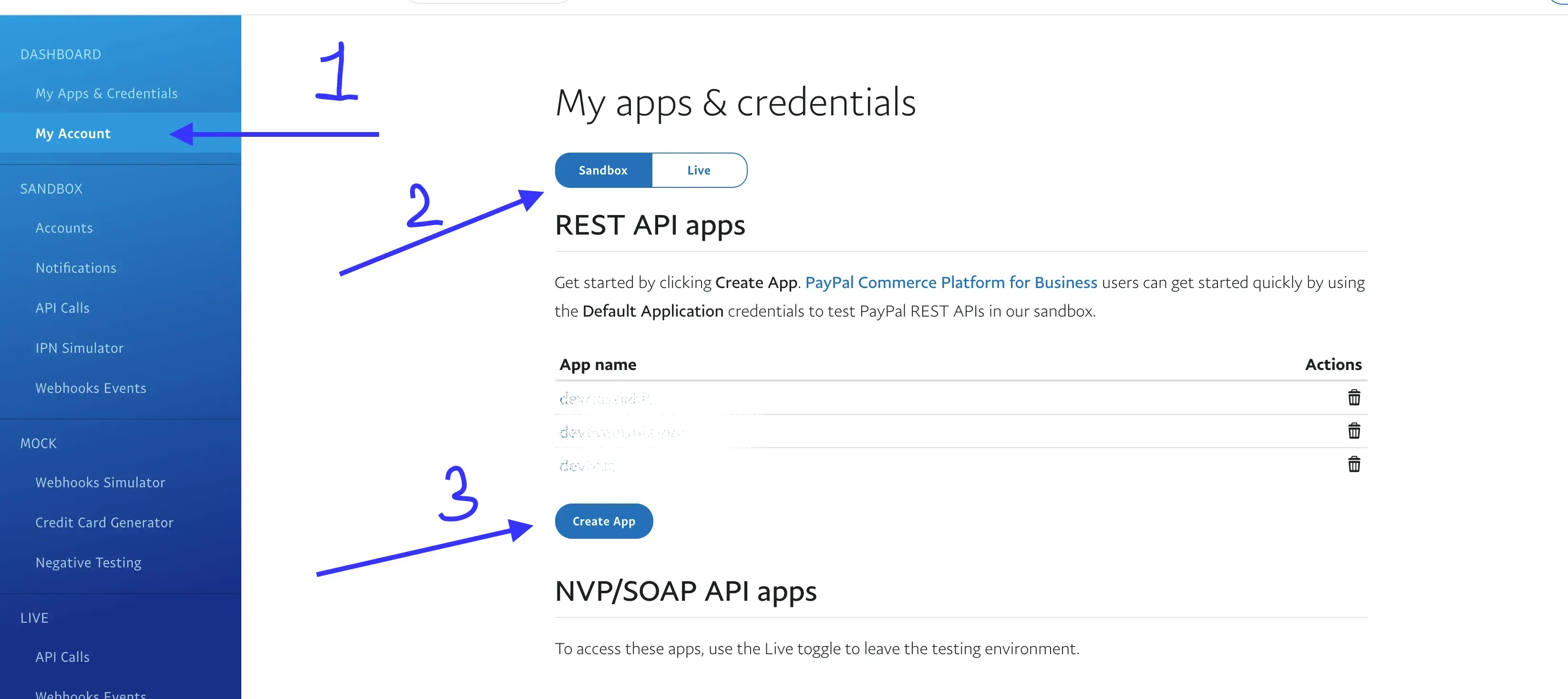
- Log in to your PayPal account and visit the PayPal Developer Dashboard
- Click on Sandbox and then Create App
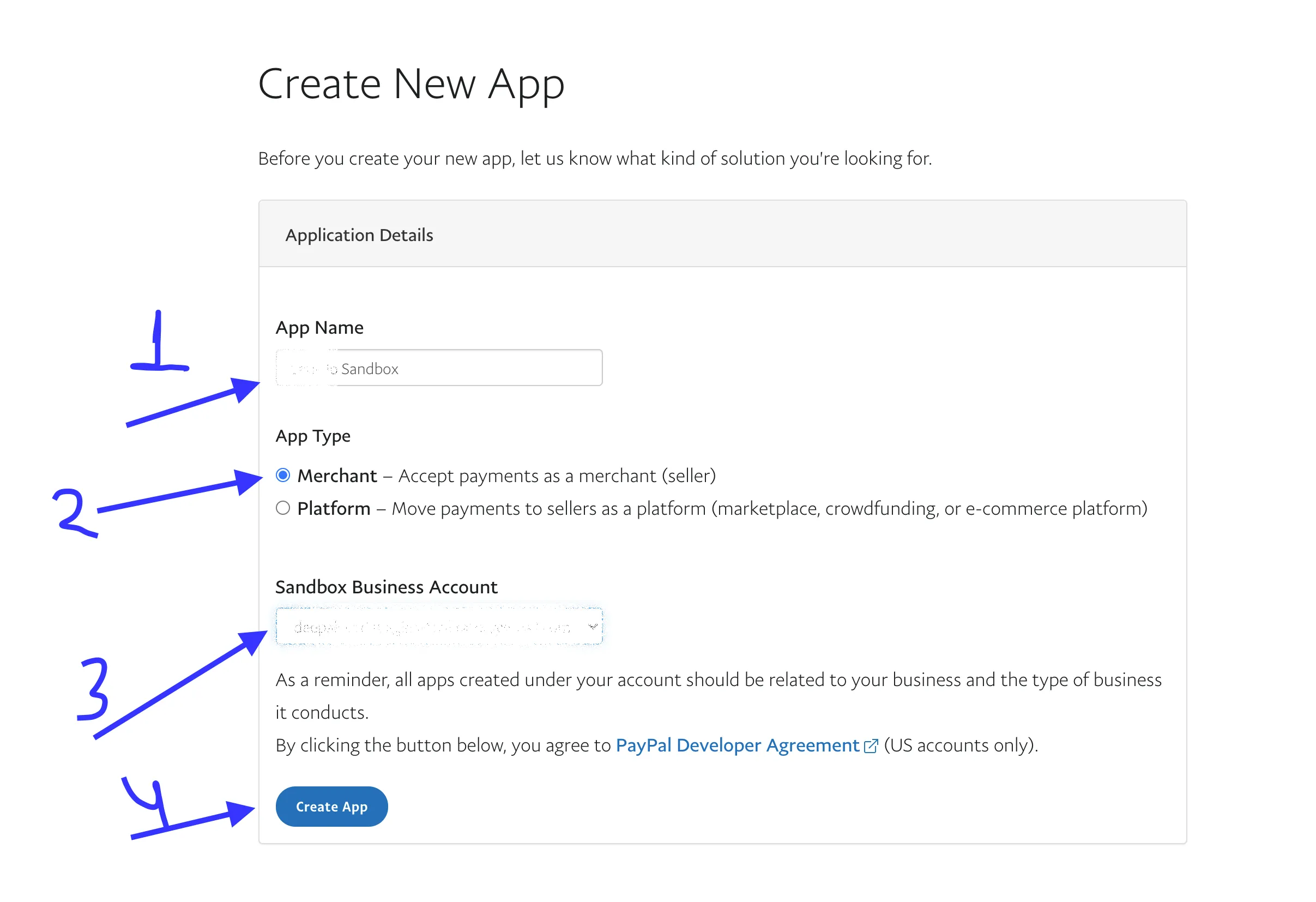
- Enter the App Name (e.g., Example Sandbox), select App Type as Merchant, keep the Sandbox Business Account as is, and click Create App.
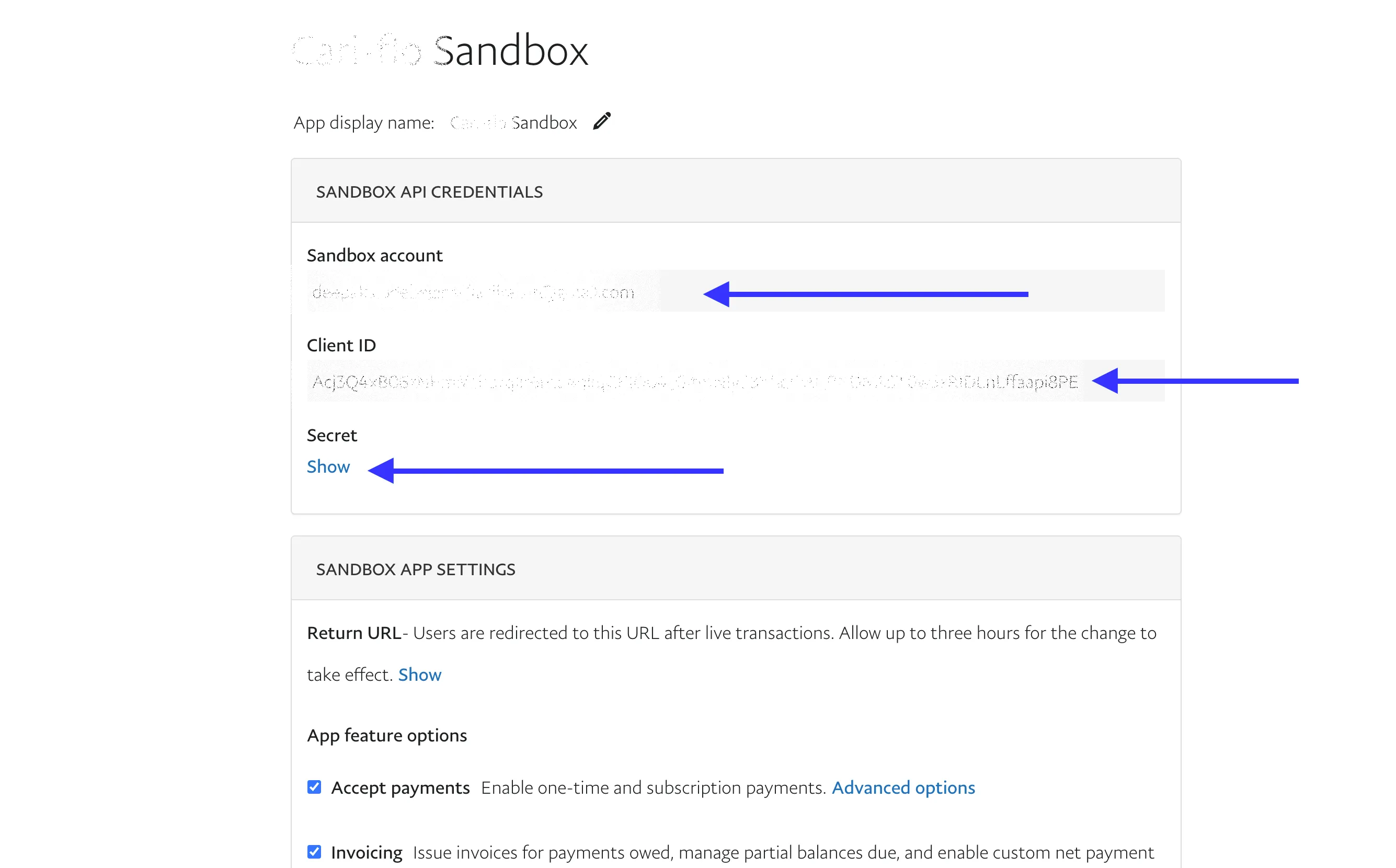
- Copy the Client ID & Secret and go to your event website Admin Panel → Settings → App. Add these credentials in PayPal client ID and PayPal secret fields, and keep Production Mode Off for sandbox testing.
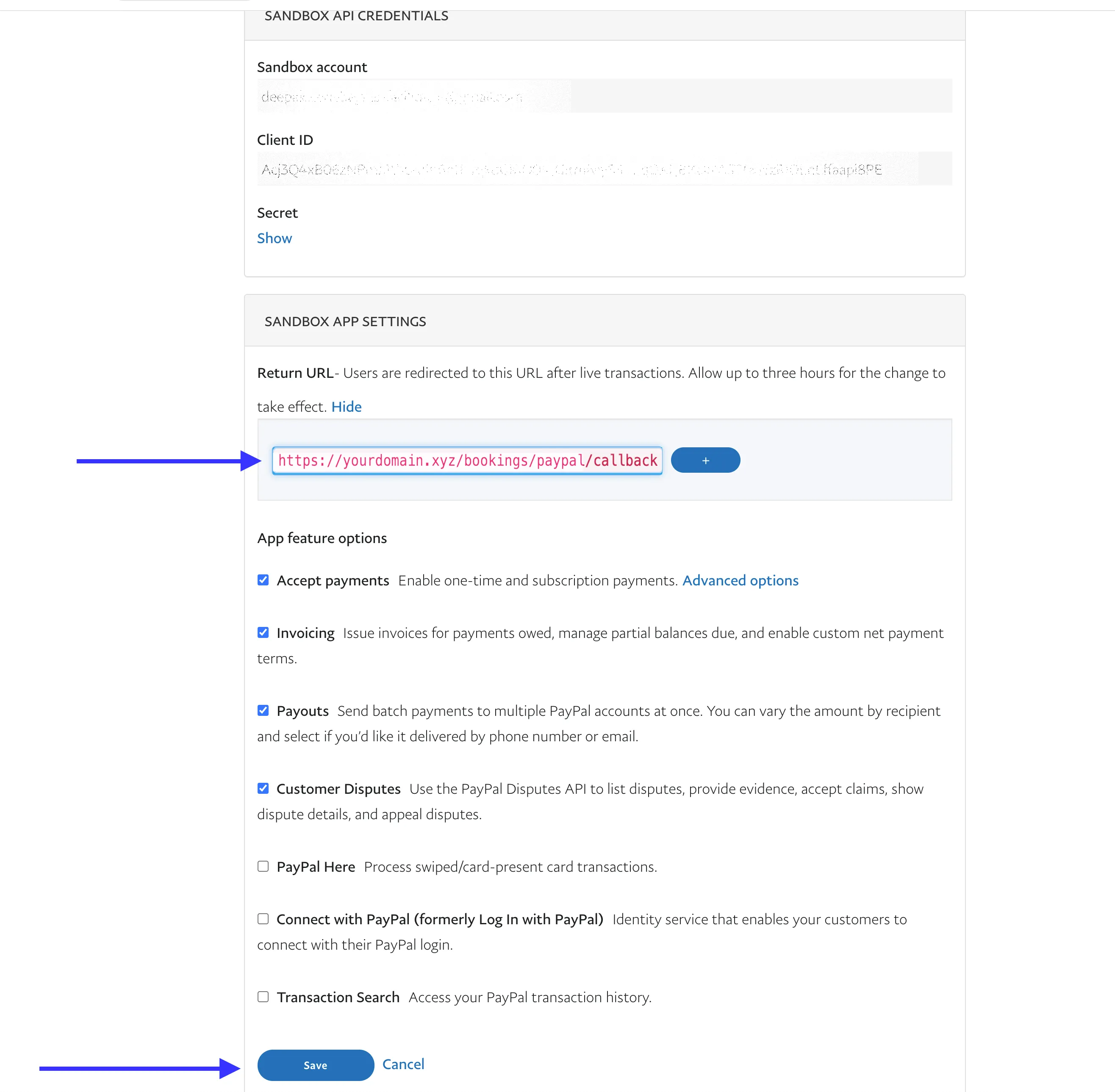
- Copy the PayPal Callback URL from Admin Panel → Settings → App and add it to PayPal as the Return URL. Click Save.
-
Set up PayPal Live (production) for real payments:
- Visit the PayPal Developer Dashboard
- Select Live and click Create App
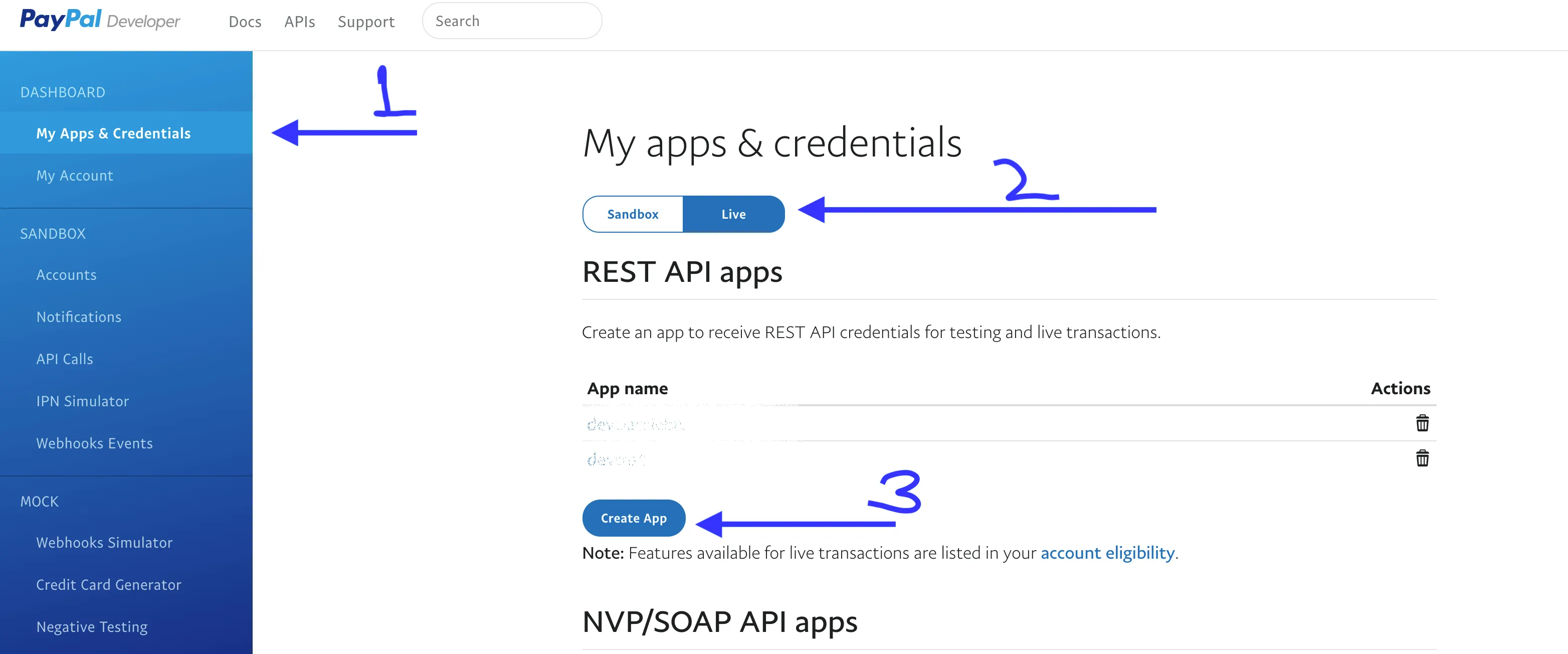
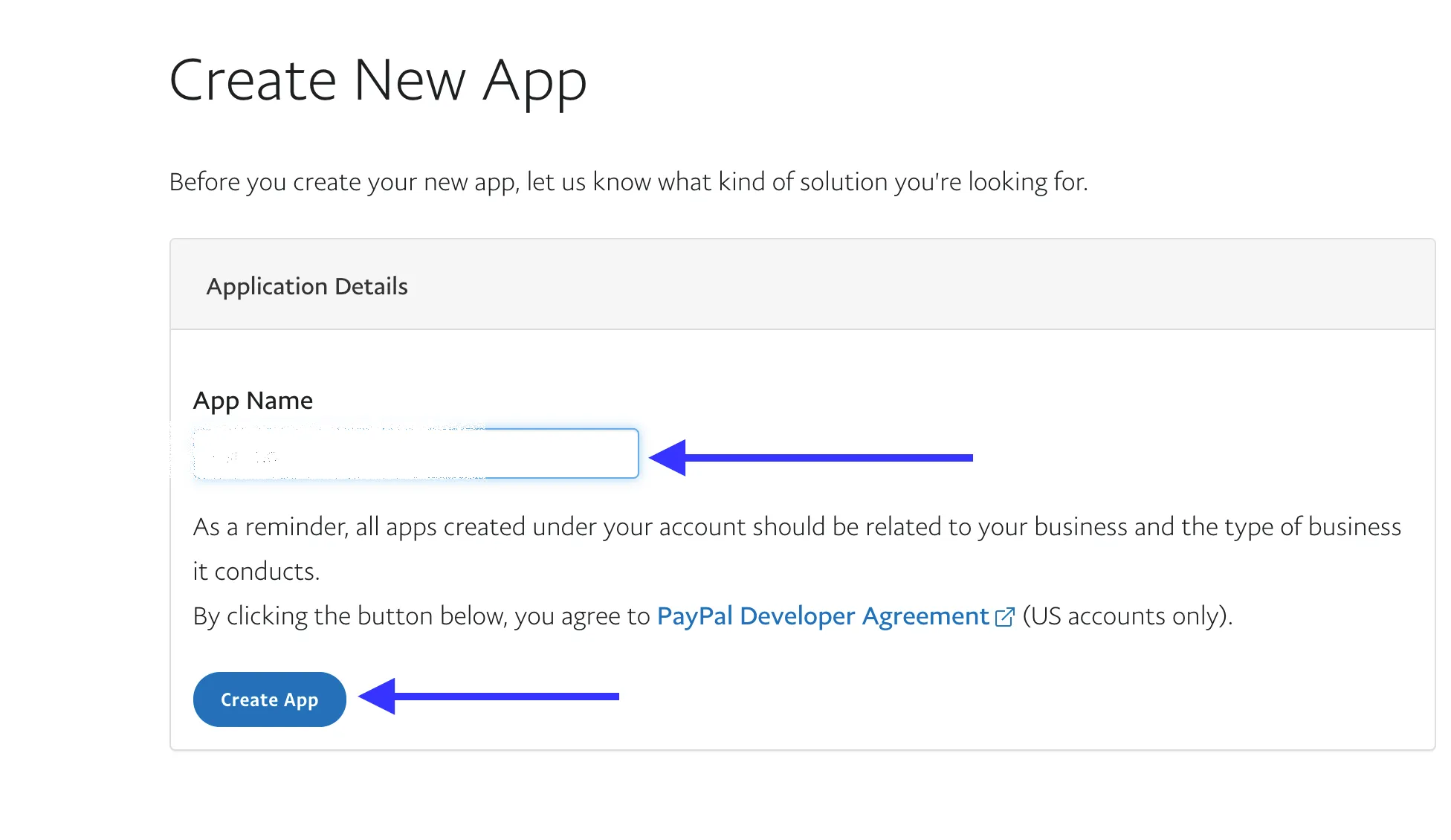
- Enter the App Name (e.g., Example Live) and click Create app
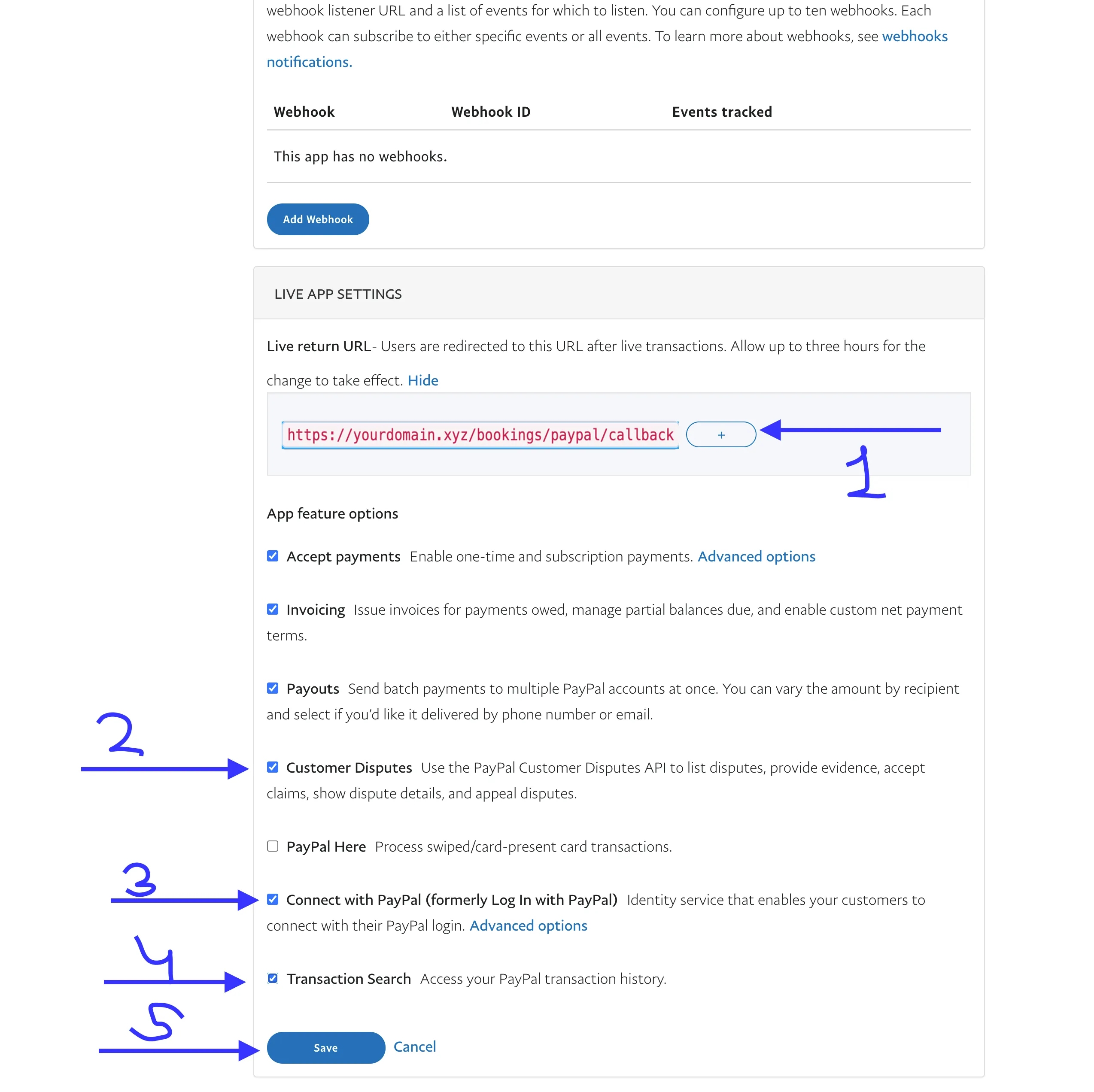
- Enter the same Callback URL, check the required checkboxes, and click Save
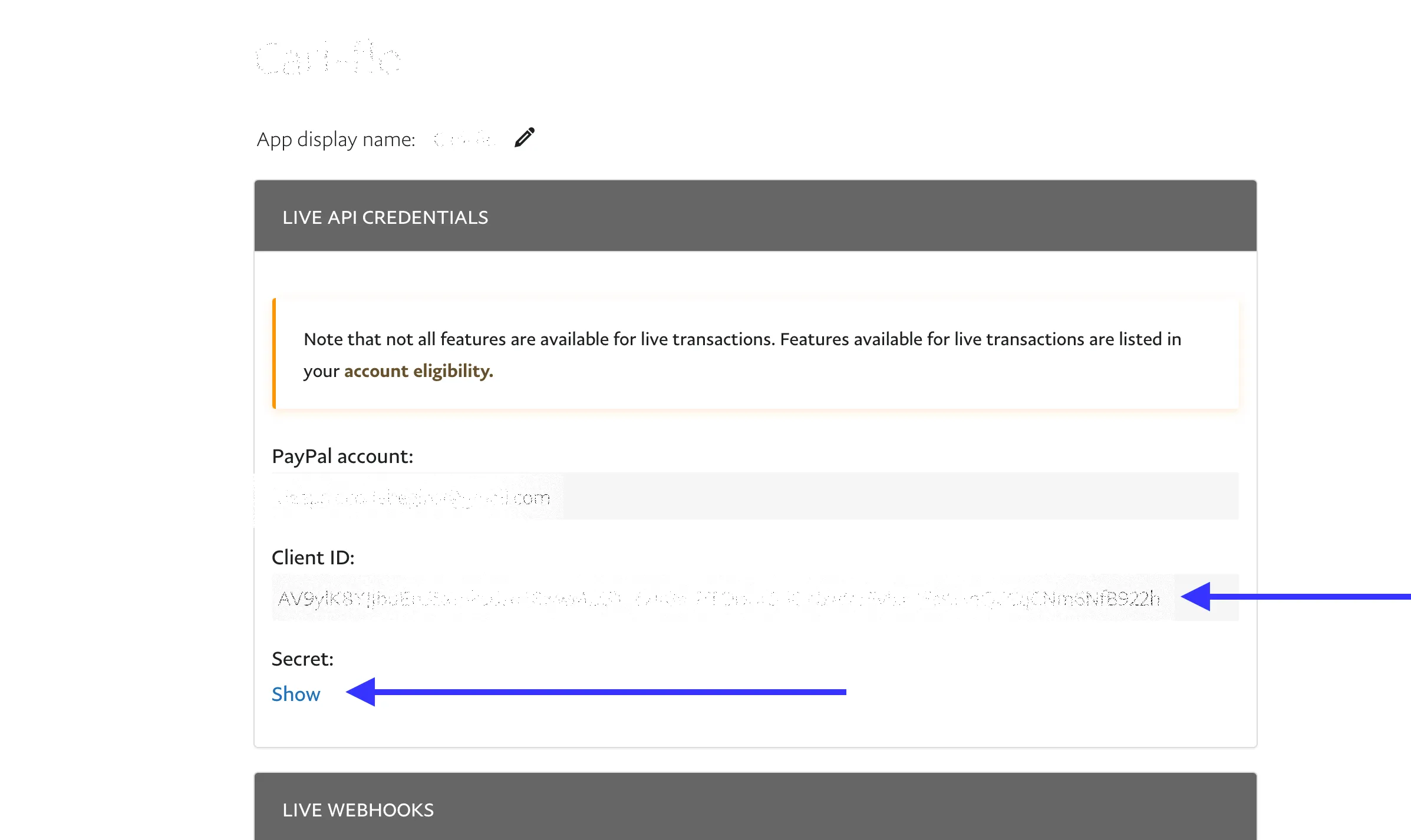
- Copy the Live App Client ID & Secret and go to Admin → Settings → Apps. Enter them in the PayPal Client ID & Secret fields, and turn Production Mode On
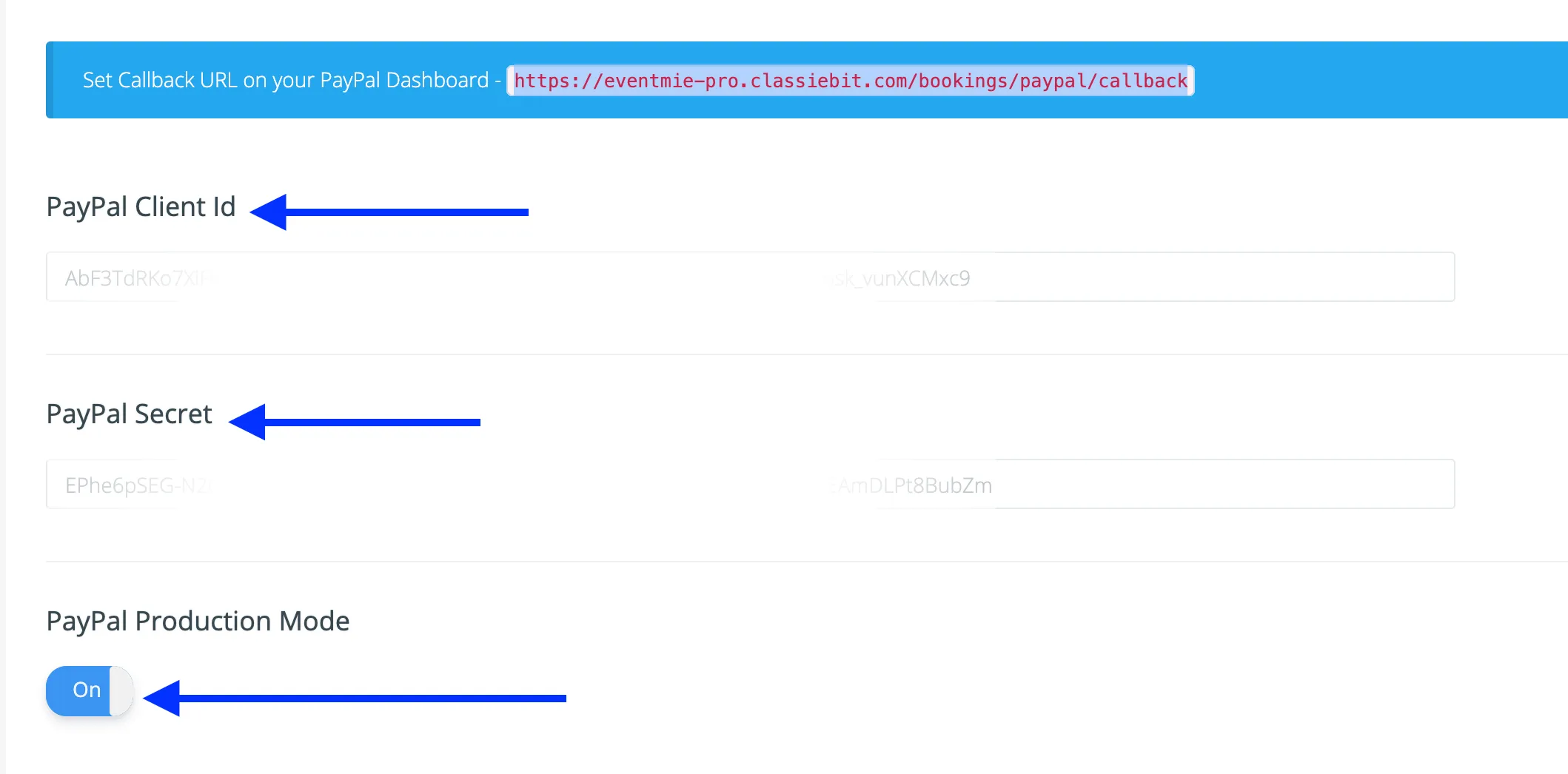
- You can now test live payments on your website
Apps & Payment Integrations
Integrate your Webworks Co & FullyLoaded platform with leading payment gateways, SMS/email providers, and third-party APIs. Configure these settings in the Apps tab of the Admin Panel for a seamless, global event experience.
Google (Social Login, Maps, Analytics)
| Setting Name | Type | Description & Best Practices |
|---|---|---|
| Google Client ID | string |
Google OAuth client ID for enabling Google login. Obtain from Google Cloud Console. |
| Google Client Secret | string |
Google OAuth client secret. Keep this secure. |
| Google Map Key | string |
Google Maps API key for embedding maps (e.g., event locations, venues). |
| Google Analytics ID | string |
Google Analytics Measurement ID (e.g., G-XXXXXXXXXX) for tracking website traffic and user behavior. |
{info} Set the callback URL in your Google Cloud Console as shown in the admin panel for proper social login.
Facebook (Social Login)
| Setting Name | Type | Description & Best Practices |
|---|---|---|
| Facebook App Id | string |
Facebook App ID for enabling Facebook login. Obtain from Facebook Developers Console. |
| Facebook App Secret | string |
Facebook App Secret. Keep this secure. |
{info} Set the callback URL in your Facebook App dashboard as shown in the admin panel for proper social login.
PayPal (Payment Gateway)
| Setting Name | Type | Description & Best Practices |
|---|---|---|
| PayPal Client Id | string |
Your PayPal REST API client ID. |
| PayPal Secret | string |
Your PayPal REST API secret. |
| PayPal Production Mode | enable/disable |
Enable for live payments, disable for sandbox/testing. |
{info} Set the callback URL in your PayPal dashboard as shown in the admin panel for proper payment notifications.
All the below settings are part of Webworks Co FullyLoaded only.
Twilio (SMS Notifications)
| Setting Name | Type | Description & Best Practices |
|---|---|---|
| Twilio Sid | string |
Your Twilio Account SID. Required for sending SMS notifications. |
| Twilio Auth Token | string |
Your Twilio Auth Token. Keep this secure. |
| Twilio Number | string |
Your Twilio phone number (E.164 format, e.g., +1 234-567-8901). |
{info} Use Twilio to send SMS alerts, booking confirmations, and reminders to attendees and organizers.
PayStack (Payment Gateway)
| Setting Name | Type | Description & Best Practices |
|---|---|---|
| PayStack Public Key | string |
Your PayStack public key for accepting payments. |
| PayStack Secret Key | string |
Your PayStack secret key. Keep this secure. |
| PayStack Merchant Email | email |
Your PayStack merchant email address. |
RazorPay (Payment Gateway)
| Setting Name | Type | Description & Best Practices |
|---|---|---|
| RazorPay Key ID | string |
Your RazorPay Key ID. |
| RazorPay Key Secret | string |
Your RazorPay Key Secret. Keep this secure. |
Stripe (Payment Gateway)
| Setting Name | Type | Description & Best Practices |
|---|---|---|
| Stripe Public Key | string |
Your Stripe publishable key. |
| Stripe Webhook Secret Key | string |
Webhook secret for secure event notifications from Stripe. |
| Stripe Direct (Auto-payout to Organizers) | enable/disable |
Enable to allow direct payouts to organizers. |
| Stripe Secret Key | string |
Your Stripe secret key. Keep this secure. |
MercadoPago (Payment Gateway)
| Setting Name | Type | Description & Best Practices |
|---|---|---|
| Mercadopago Access Token | string |
Your MercadoPago access token for Latin America payments. |
BitPay (Cryptocurrency Payments)
| Setting Name | Type | Description & Best Practices |
|---|---|---|
| BitPay Key Name | string |
Your BitPay key name. |
| BitPay Encrypt Code | string |
BitPay encryption code. |
| BitPay Production | enable/disable |
Enable for live payments, disable for testing. |
Authorize.Net (Payment Gateway)
| Setting Name | Type | Description & Best Practices |
|---|---|---|
| Authorize.Net Login Id | string |
Your Authorize.Net API Login ID. |
| Authorize.Net Transaction Key | string |
Your Authorize.Net transaction key. |
| Authorize.Net Test Mode | enable/disable |
Enable for sandbox/testing, disable for live payments. |
PayTM (Payment Gateway)
| Setting Name | Type | Description & Best Practices |
|---|---|---|
| PayTM Live Mode | enable/disable |
Enable for live payments, disable for testing. |
| PayTM Merchant ID | string |
Your PayTM merchant ID. |
| PayTM Merchant Key | string |
Your PayTM merchant key. |
| PayTM Merchant Website | string |
Your PayTM merchant website (e.g., WEBSTAGING for test, or your live site). |
| PayTM Channel | string |
Channel for PayTM integration (e.g., WEB). |
| PayTM Industry Type | string |
Your PayTM industry type (e.g., Retail). |
Best Practices & Tips
- Keep all API keys and secrets secure and never share them publicly.
- Test each integration after setup to ensure smooth payments, notifications, and logins.
- Restrict API keys to your domain or IP where possible for security.
- Enable only the payment gateways you need for your region and business model.
- Consult official docs for each provider for the latest setup and security recommendations.
Offline Payment
Offline payment allows booking premium tickets without online payment. By default, this method is disabled. To enable Offline Payment:
- Go to
Admin Panel -> Settings -> Bookings Tab. - Enable
Allow Offline Payment For Organizer&Allow Offline Payment For Customer. - You can enable or disable offline payment for Organizers & Customers separately as needed.
{primary} Admins can always make bookings using the Offline Payment method.
Configure your email settings to ensure reliable communication with attendees and organizers.
| Setting Name | Type | Description |
|---|---|---|
| Mail Driver | string |
Mail driver name (e.g., smtp) |
| Mail Host | string |
Mail host (e.g., 127.0.0.1) |
| Mail Port | string |
Mail port (e.g., 1025) |
| Mail Username | string |
Mail username (e.g., testuser) |
| Mail Password | string |
Mail password (e.g., testpwd) |
| Mail Encryption | list |
Choose: disable, SSL, or TLS |
| Mail Sender Email | email |
Sender email (e.g., hello@webworksco.in) |
| Mail Sender Name | string |
Sender name (e.g., Webworks Co) |
Regional
Set up region-specific configurations for accurate time, currency, and localization.
| Setting Name | Type | Description |
|---|---|---|
| Timezone | list |
Select your region-specific timezone |
| Currency | string |
Set your default currency |
| Date Format | list |
Choose your preferred date format |
| Time Format | list |
Choose your preferred time format |
| Timezone Conversaion | enable/disable |
Enable or disable timezone conversion. Keep it disabled if you're doing event in a single timezone. |
Automatic Timezone Conversion from Server-side to Client-side & vice versa.
- If your default timezone is
America/Los_Angelesand a customer visits fromIndia/Kolkata, the customer will see dates and times in their local timezone, whileAmerica/Los_Angelesremains the website's central timezone.
{success} Webworks Co automatically detects visitors' timezones and handles server-to-client DateTime conversions seamlessly.