Simple Events: Effortless Event Creation for Any Occasion
Create, manage, and publish single-day or multi-day events with Webworks Co 's Simple Events feature—designed for maximum flexibility, business growth, and attendee engagement. Whether you're hosting a conference, workshop, performance, or community gathering, Simple Events empower you to launch professional event pages in minutes, with all the tools you need to succeed.
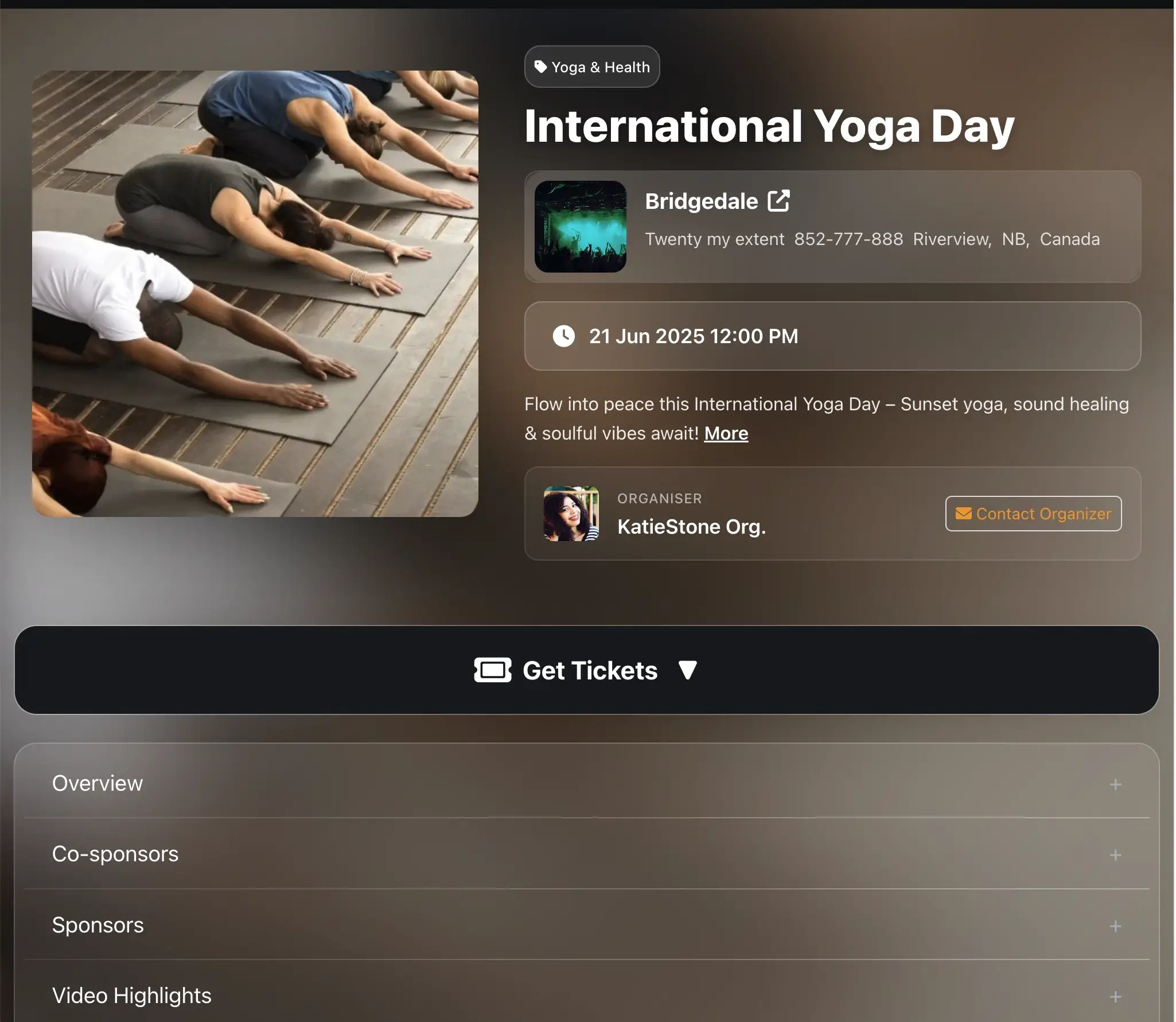
{success} Repetitive events, online events, and classes will be covered in the next sections. Each feature is explained in detail to ensure clarity and ease of use.
{primary} This section will guide you through all front-end event creation features in Webworks Co .
Create Simple Event
A simple event refers to a single-day or multi-day event. Click on
Details
The first step is required to proceed. Enter the following event details:
- Organizer: (Admins only) Assign or create an organizer profile.
- Category: Choose the most relevant event category for discoverability.
- Event Name & Excerpt: Clear, compelling titles and summaries boost engagement and SEO.
- Event URL: Auto-generated, but can be customized for branding and SEO.
- Description: Use rich formatting to highlight value, agenda, and speakers.
- Why Attend: (Optional) Persuade visitors with unique selling points.
- Offline Payment Instructions: (If enabled)
Featured & Status: (Admins only) Highlight or control event visibility
- Event Featured (if logged in as Admin) (set Event as Featured)
- Event Status (if logged in as Admin) (force Enable/Disable event)

{success} SEO Tip: Use keywords in your event name, description, and excerpt for better search rankings. Try the Create with AI feature to generate SEO-optimized content automatically.
Timing
Define when your event starts and ends. Supports both single-day and multi-day formats.
- Start/End Date & Time: Ensure accuracy for attendee trust and calendar sync.
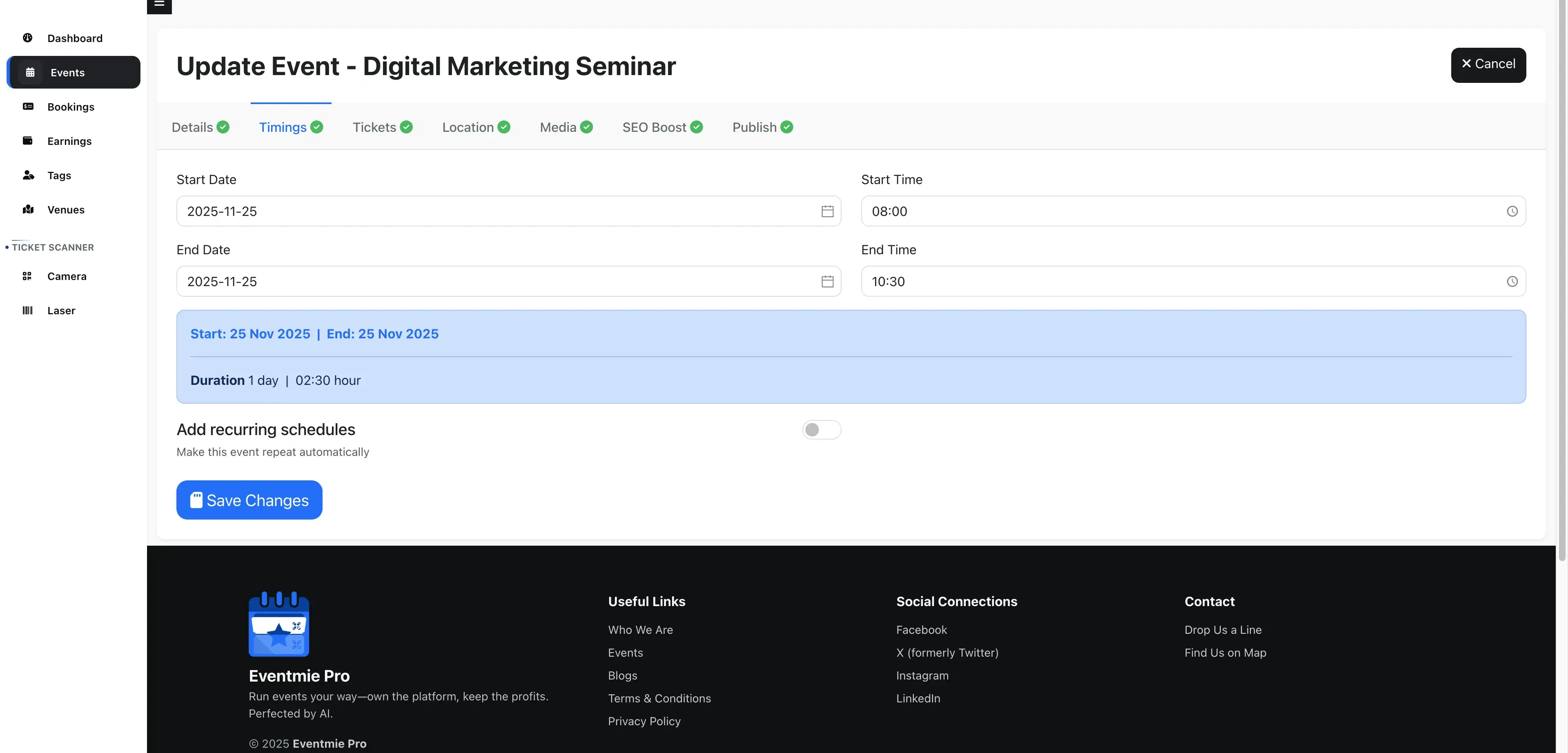
{warning} Note: For recurring schedules, use Repetitive Events.
Tickets
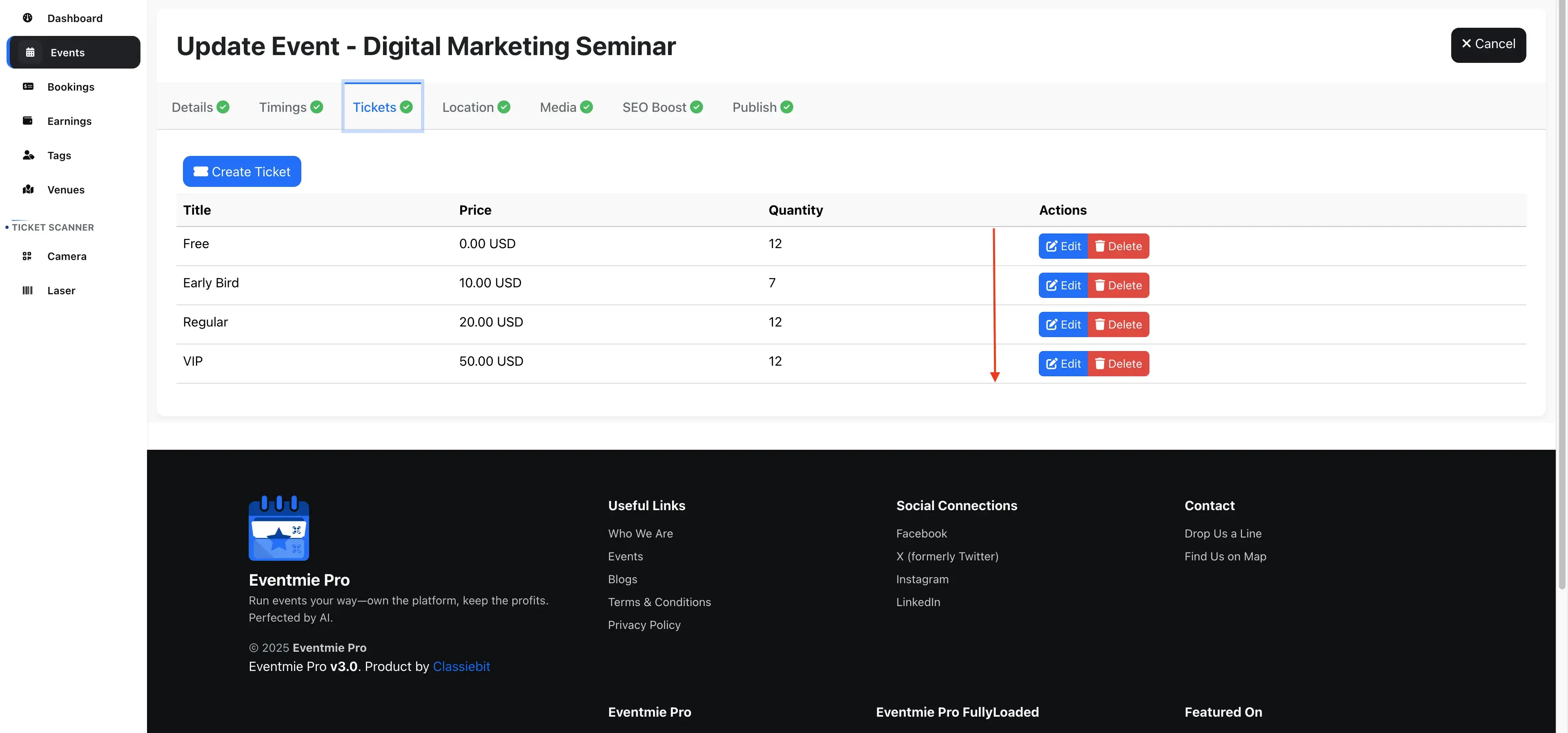
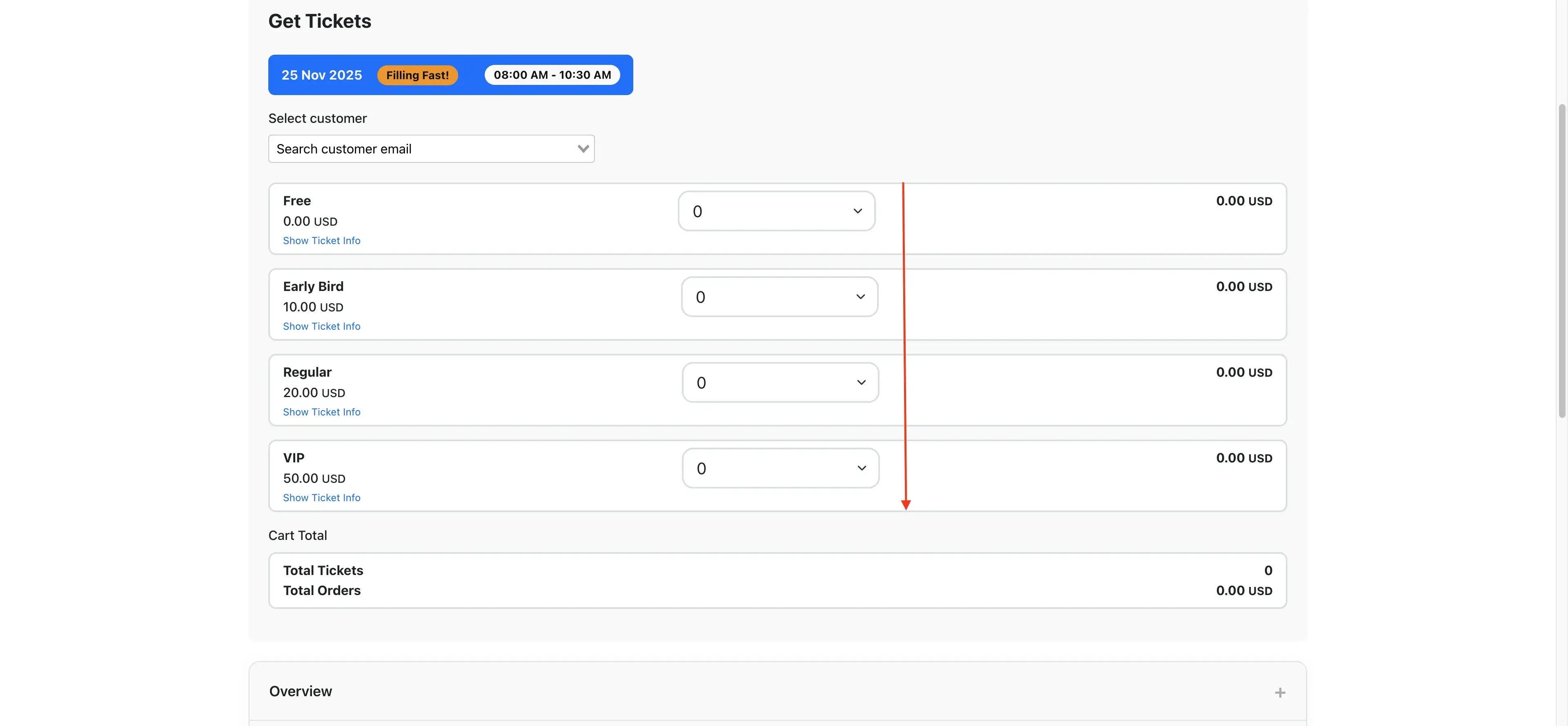
Create free or paid tickets, set capacities, and apply taxes for transparent pricing.
- Tickets can be
FreeorPaid. - Apply taxes to each ticket individually for accurate pricing.
- Multiple taxes can be applied to a single ticket.
- Set a custom ticket order to display tickets on the Checkout Page in your preferred sequence.
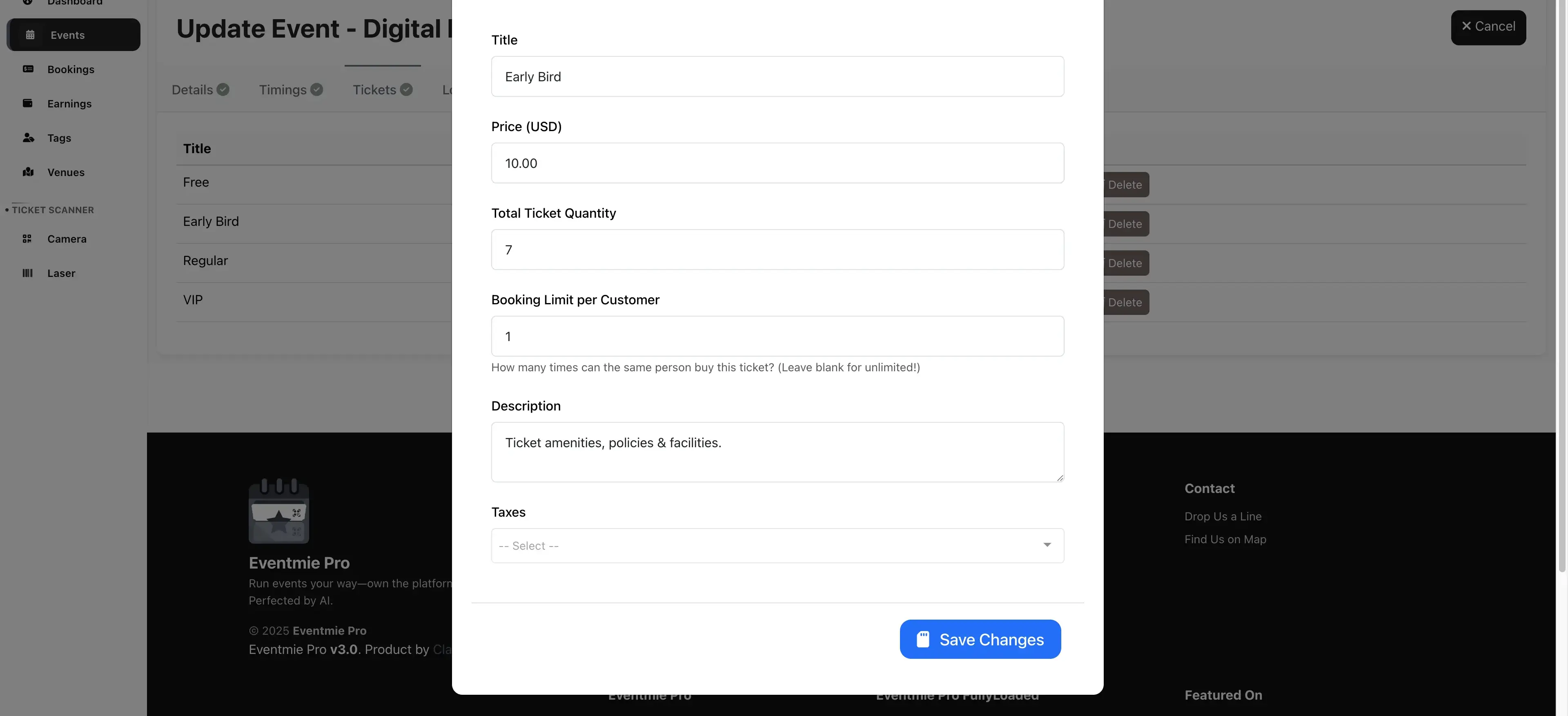
Ticket Settings:
- Title: Set the ticket title e.g "Early Bird", "VIP", "Group", "Standard", etc.
- Price: Set the ticket price. Set to 0 for free tickets. Set a higher value than 0 for paid tickets.
- Total Ticket Quantity (Capacity): Limit bookings per ticket per customer. (unique email address)
- Booking Limit Per Customer: Prevent scalping or overbooking.
- Description: Highlight ticket perks or amenities.
- Taxes: Apply one or more taxes per ticket.
-
Sequence No.: Set to 0, 1, 2, 3, etc. to control display order on checkout page. (FullyLoaded only)
Location
Add event location details to help attendees find your venue easily. Enter Google map Lat-long to display a pinned venue on the event page map. Supports both physical and hybrid events.
- Venue Name & Address: Accurate details improve trust and navigation.
- Google Map Lat/Long: Pin your venue for easy discovery.
- City, State, Zip, Country: For local SEO and filtering.
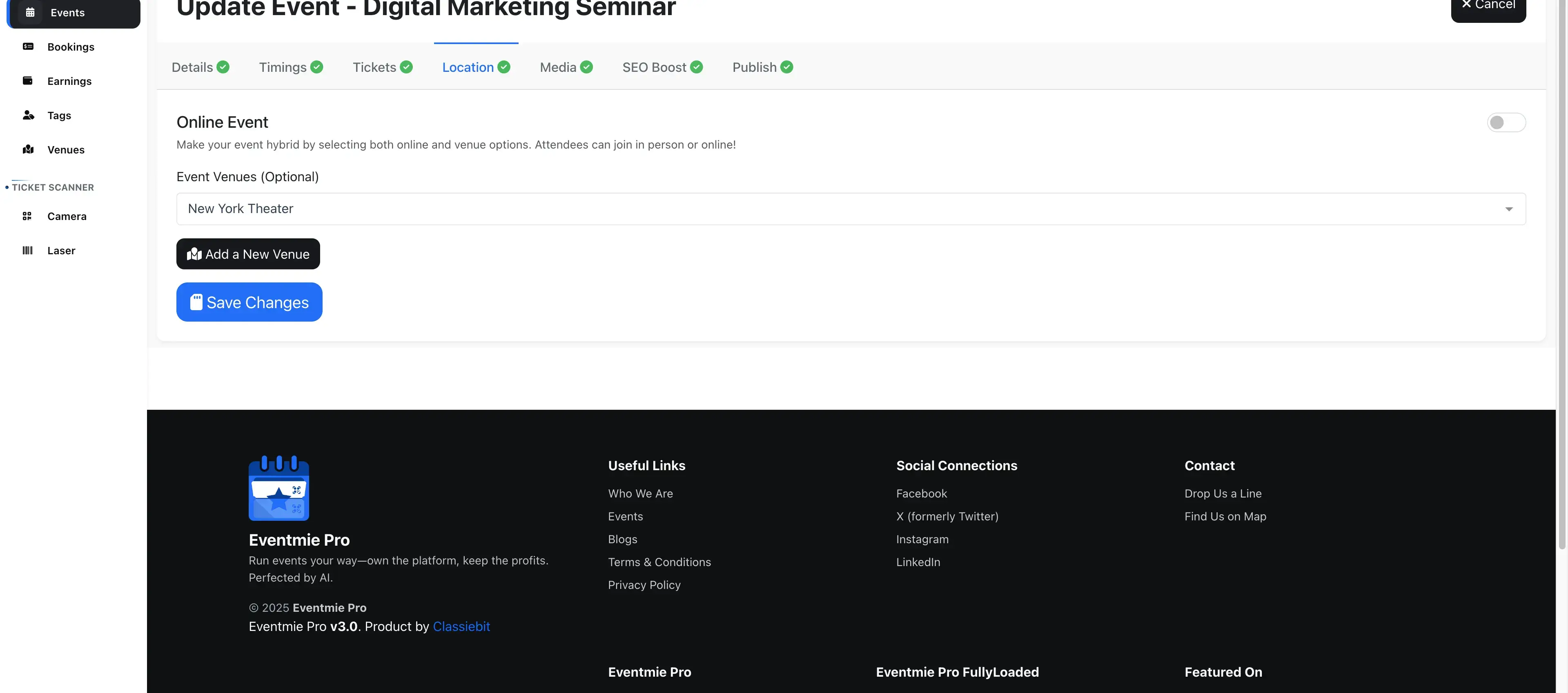
{warning} Online Events: For virtual-only events, see Online Events.
Media
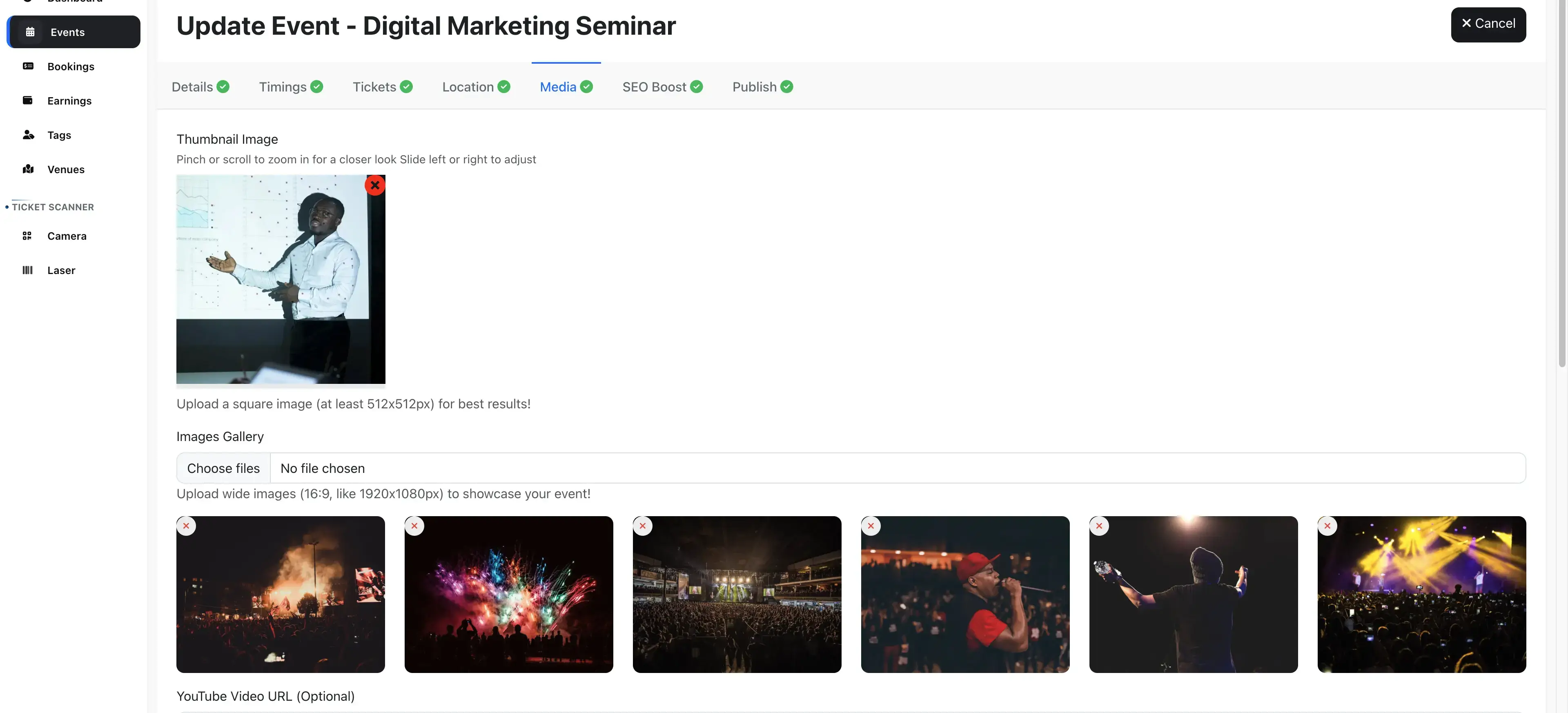
Make your event stand out with professional images and videos. Upload your event image, and gallery images. Use the recommended image sizes for best results. Crop and adjust images as needed for a professional look.
- Thumbnail: Upload mentioned image size (512x512px) or any square size for event thumbnail. You can upload any square size image as well. The cropper will crop itself.
- Gallery: Showcase past events or speakers.
- YouTube Video URL: Embed promo or highlight reels. (FullyLoaded only)
{success} Pro Tip: Use images with text overlays for key info (date, location, call-to-action).
SEO
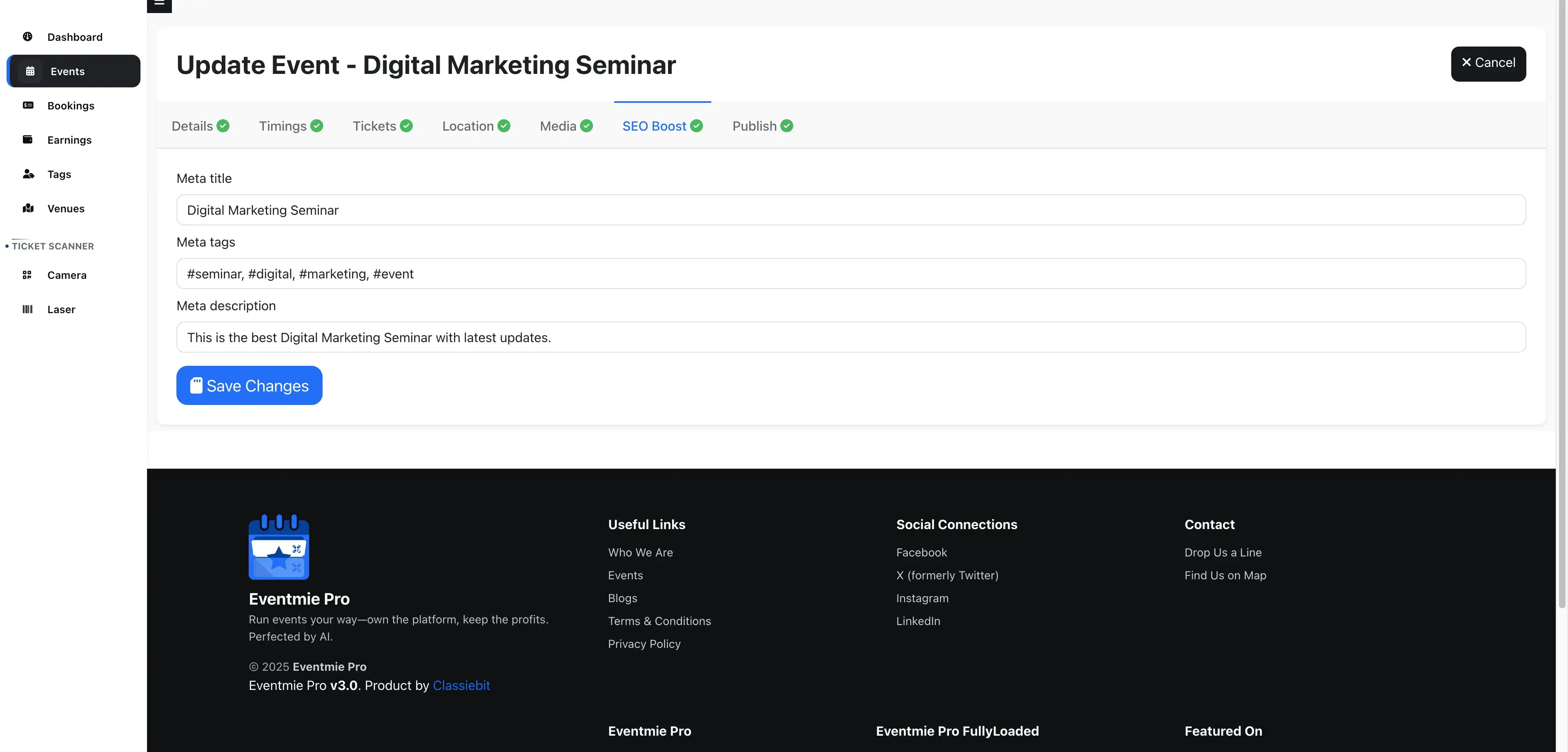
Optimize your event for search engines by adding meta titles, keywords, and descriptions. These tags are specific to each event and help improve event-specific SEO.
- Meta Title: Appears in browser tabs and search results.
- Meta Tags/Keywords: Target relevant search queries.
- Meta Description: Persuasive summary for higher click-through rates.
{primary} SEO Best Practice: Keep meta titles under 60 characters and descriptions under 160 characters.
Finalize & Publish
- Tags: Add or create tags for discoverability and filtering. Tags can be used to categorize speakers, sponsors, VIPs, hosts, or any other key participants and highlights of your event. Create custom tag groups to organize and showcase important people and elements that make your event special.
- Save & Publish: Instantly preview and publish your event.
- Unpublish/Republish: Control event visibility at any time.
{info} Checklist: An event can be published only after completing Details, Timings, Tickets, Location, and Media steps.
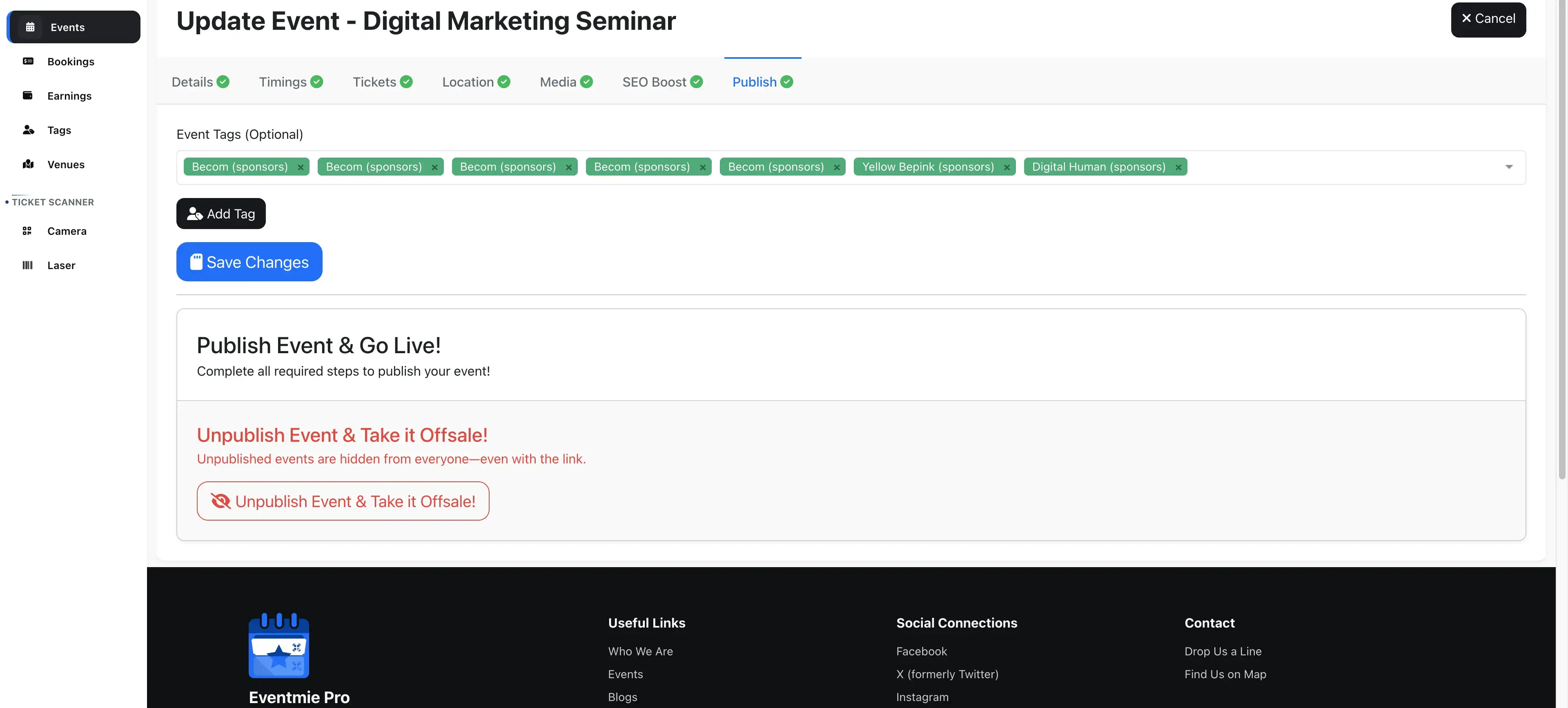
{primary} Tip: You can manage tags from the Dashboard > Tags.
{success} Next Steps: View your published event on the listing page
Browse Events
Troubleshooting & FAQ
Q: Why can't I publish my event? A: Ensure all required steps (Details, Timing, Tickets, Location, Media) are complete.
Q: How do I create a recurring or online event? A: Use Repetitive Events or Online Events for advanced scheduling and virtual options.
Q: How do I optimize my event for search engines? A: Use relevant keywords in your event name, description, and meta tags.
Q: Can I duplicate or clone an event? (available in FullyLoaded) A: Yes, use the event clone feature to save time on similar events.
Q: Where can I get more help? A: See Support & Customizations or contact our team.
Upgrade Callouts & Advanced Features
- Repetitive Events: For weekly, monthly, or custom schedules, see Repetitive Events.
- Online/Hybrid Events: For virtual or hybrid formats, see Online Events.
- AI-Powered Event Creation: Use AI to generate event descriptions, images, and more (see AI Features).