{success} This Feature only available in Webworks Co FullyLoaded
Event Guestlist
Organizers can easily create and manage separate guestlists for every event in Webworks Co FullyLoaded. Export guest and attendee emails as CSV files to send bulk promotional emails or important event updates using services like MailChimp, Mailgun, and more.

Create GuestList
Follow these steps to create a guestlist:
-
Login as Organizer and go to Manage Guests.
-
Click Create Guests List.

-
Enter the GuestList name and click Save.
-
Click Create Guest to add guests to the GuestList.
-
Enter the guest's name, email, and select the GuestList to add them to.
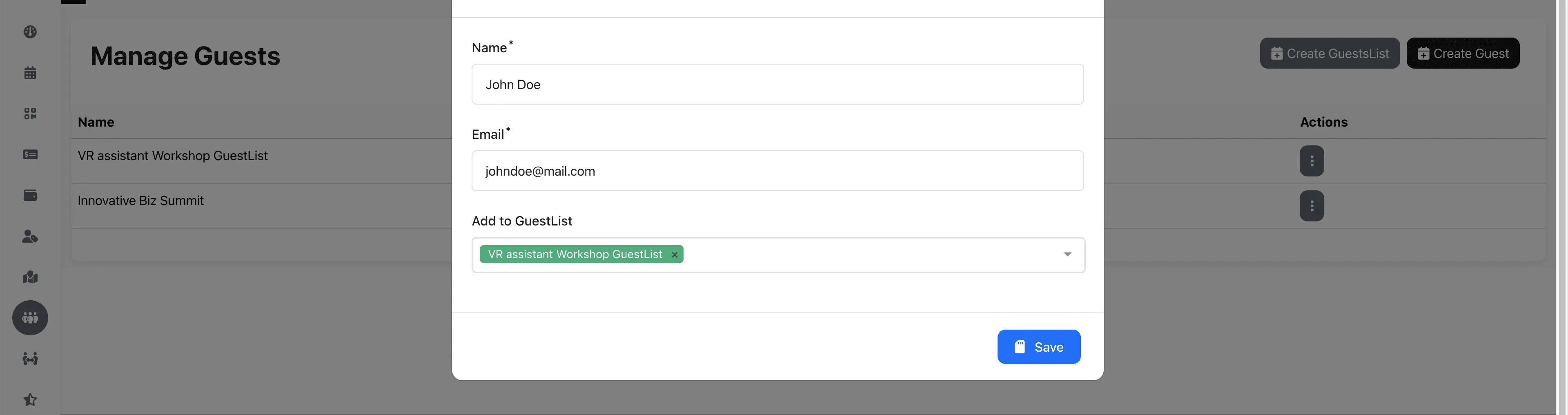
You can create multiple custom guestlists and add any guests you choose. Export guest emails as CSV files to send event promotions or updates via your preferred email marketing service.
Attendees to GuestList
You can also add event attendees' emails to a guestlist you've created.
-
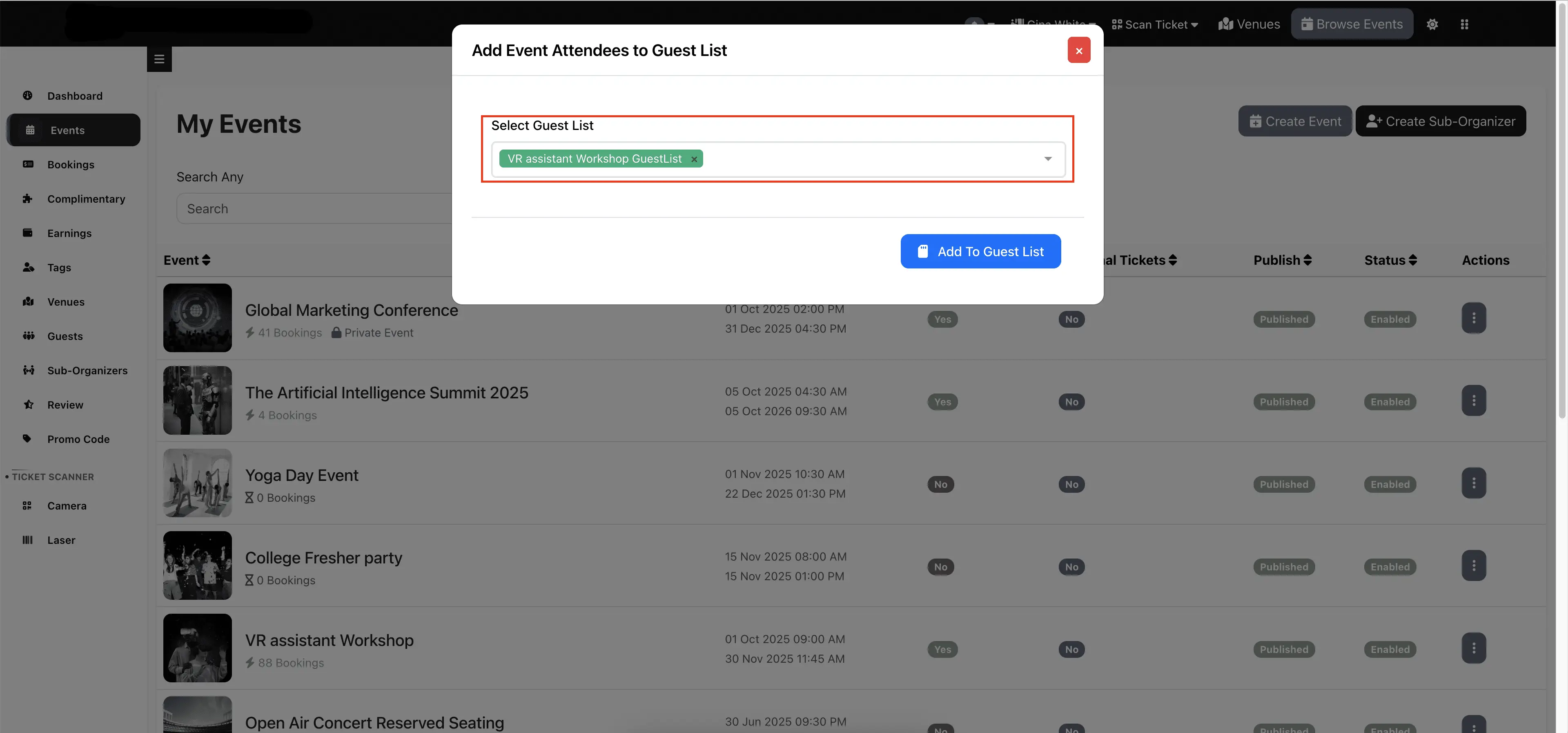
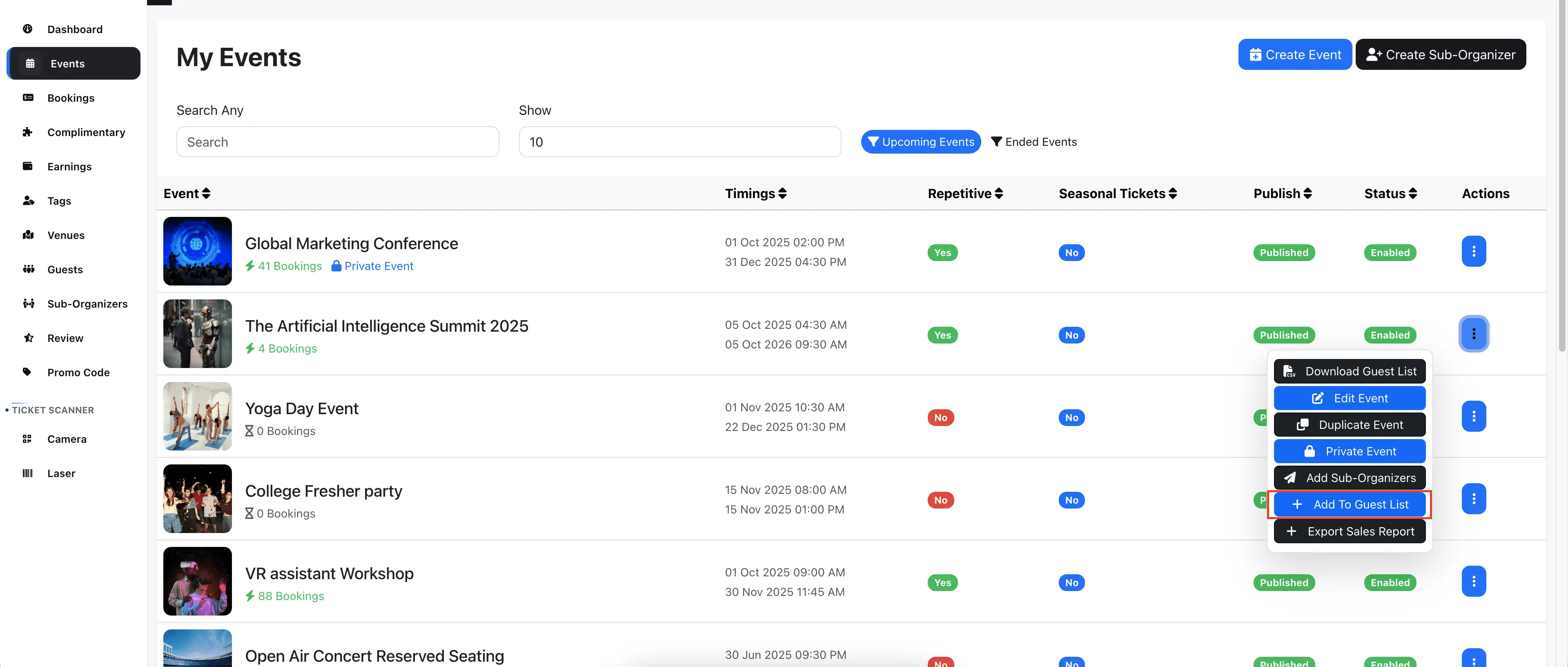
Go to the Manage Events page and click Add To GuestsList.
-
In the popup, select the GuestList and click Add To GuestsList.