{success} This Feature only available in Webworks Co FullyLoaded
Reserved Seating (FullyLoaded)
Reserved seating in Webworks Co FullyLoaded gives you full control over seat selection, seat maps, and attendee experience—perfect for theaters, cinemas, stadiums, and premium events.
- Interactive Seat Maps:
- Design custom seat layouts for your venue
- Attendees select their preferred seats during checkout
- Real-Time Availability:
- Instantly updates as seats are booked
- Prevents double-booking and overselling
- Flexible Pricing:
- Set different prices for VIP, regular, and economy seats
- Mobile & Desktop Support:
- Seamless experience on any device
Reserved Seating & Interactive Seat Booking in Webworks Co FullyLoaded
Set up any kind of reserved seating arrangement—stadiums, townhalls, cinemas, restaurants, lounges, and more—in your Webworks Co FullyLoaded Laravel event management platform. Offer attendees a seamless seat selection and booking experience with real-time seat availability and interactive seat charts.
In v2.0, you can:
- Drag-and-drop to adjust seats on the seat chart image.
- Enable a seat waiting list: if two users try to book the same seat, the system blocks the seat for the first user.
- Real-time seat availability: blocked seats are instantly shown to other users, preventing double bookings.
Requirements for Reserved Seating
Before creating reserved seating tickets, prepare two types of high-quality images:
- A full image of the seating arrangement (e.g. stadium, cinema, etc.). Example:
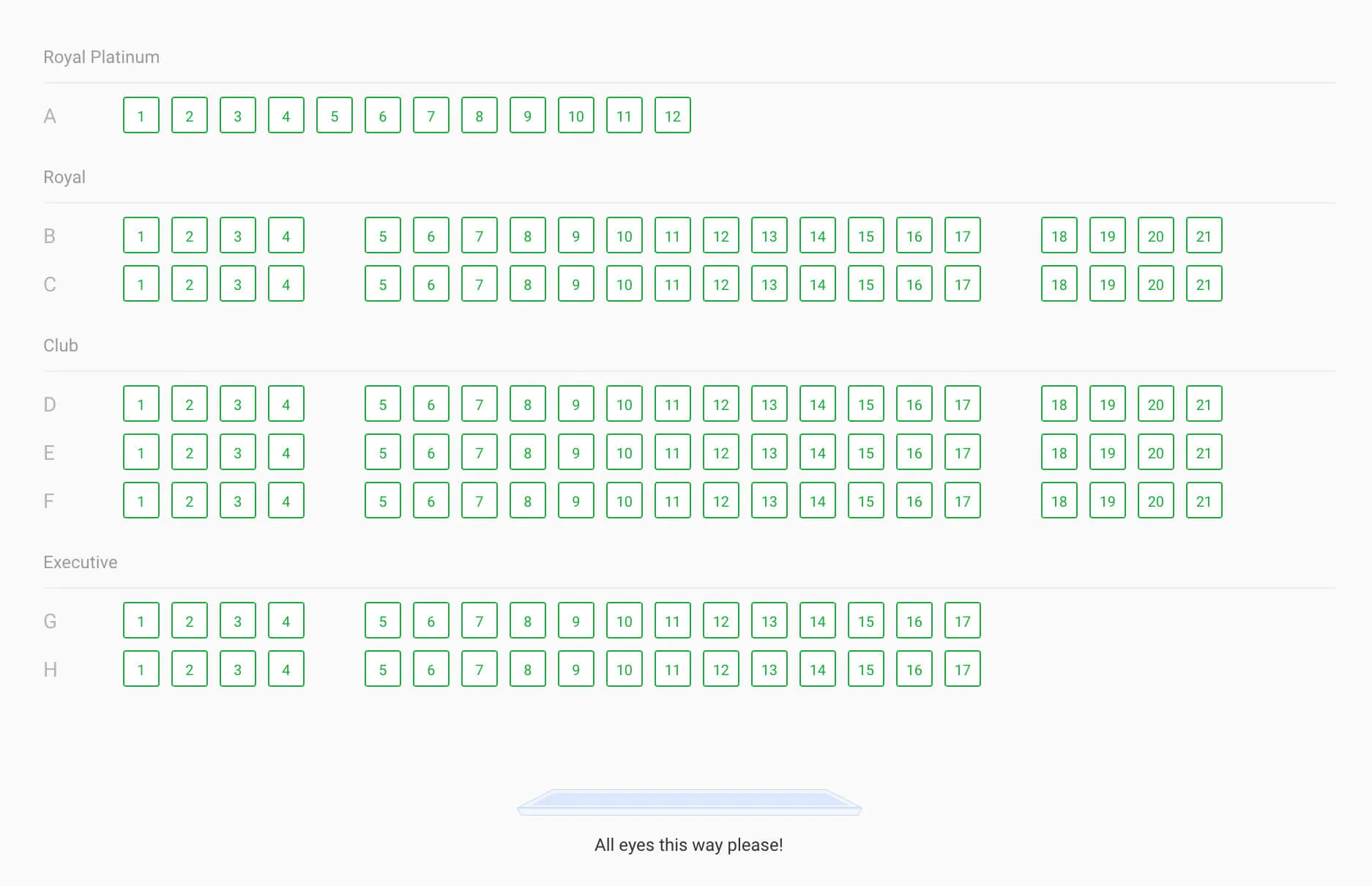
- Cropped images for different ticket types (executive, VIP, etc.). Examples:




How to Add Reserved Seating to Your Event
Follow these steps to add reserved seating tickets:
-
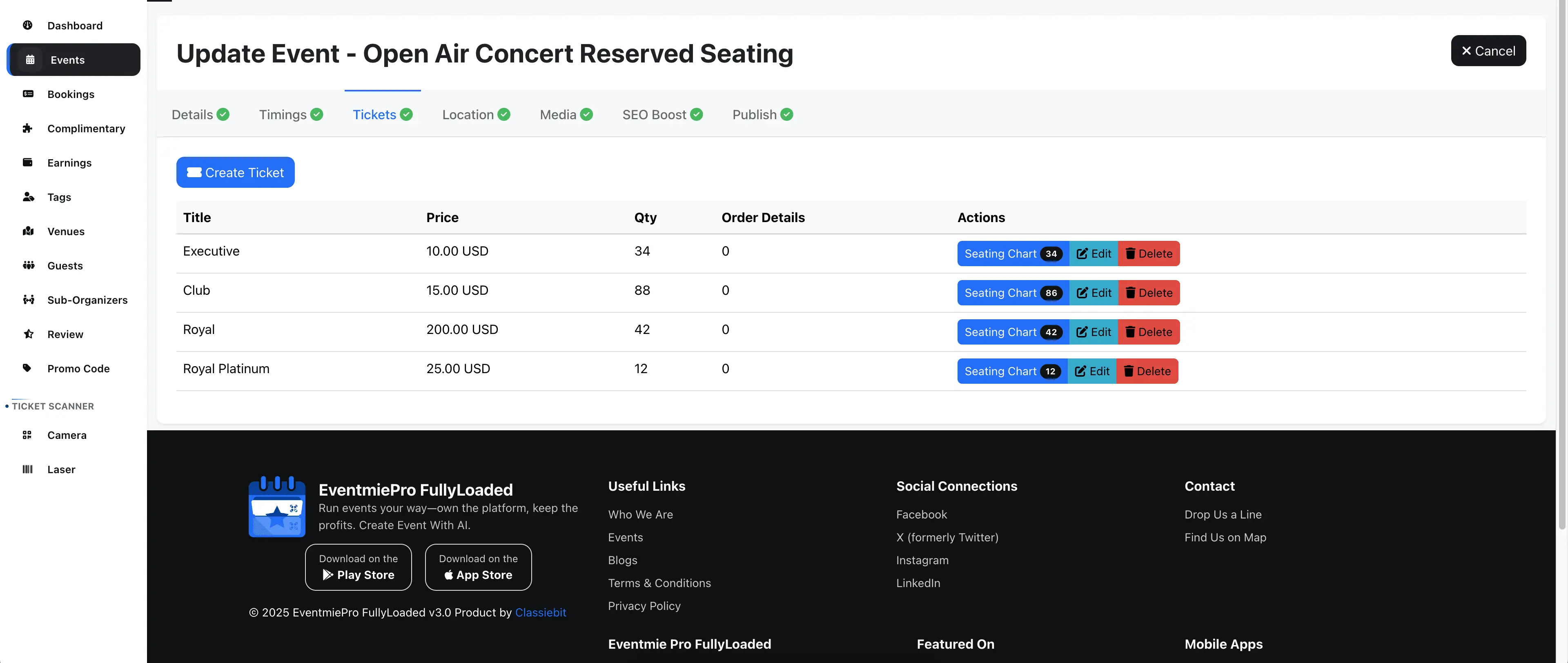
Go to Event Edit Page -> Tickets Tab.
-
Create tickets for the event.
-
Click the Seating Chart button.
-
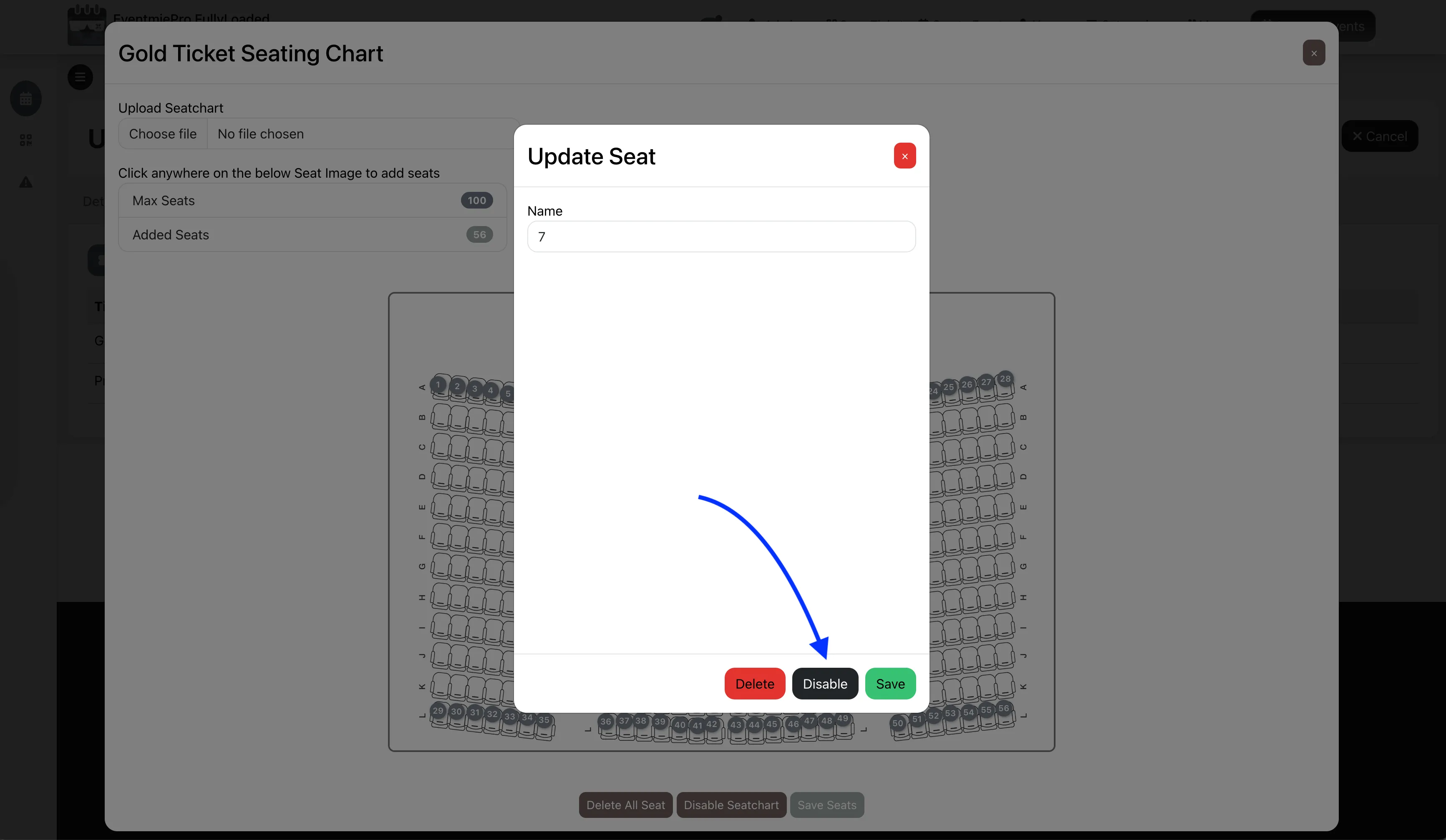
In the popup, upload the cropped seating image for the specific ticket type.

-
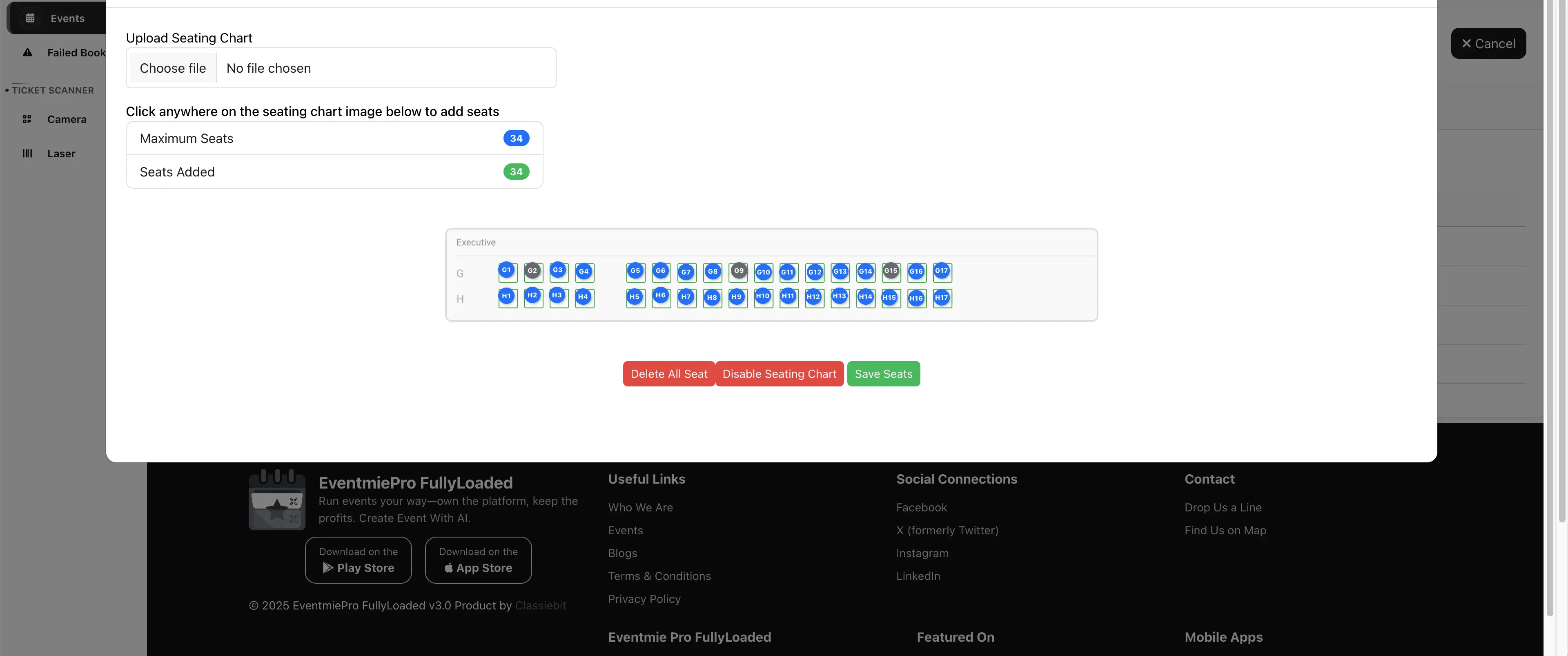
Click in the center of each seat block to add seats. Drag to reposition seats for perfect alignment.

-
Rename seats by right-clicking on the seat you added.

-
Disable seats after adding them (for pre-reserved or unavailable seats). Disabled seats appear as unavailable on the checkout popup.
-
You can only add up to the maximum number of seats (total ticket quantity).
-
Repeat these steps to add reserved seating for other ticket types.

-
For general seating (no reserved seats), simply do not add seats for that ticket.
-
Go to the Media Tab and upload the full seating arrangement image as the Seating Chart Image.
Booking Reserved Seats: Attendee Experience
Once reserved seating is set up, attendees can select and book seats interactively on the event page.
-
View the full seating arrangement image on the event page.
-
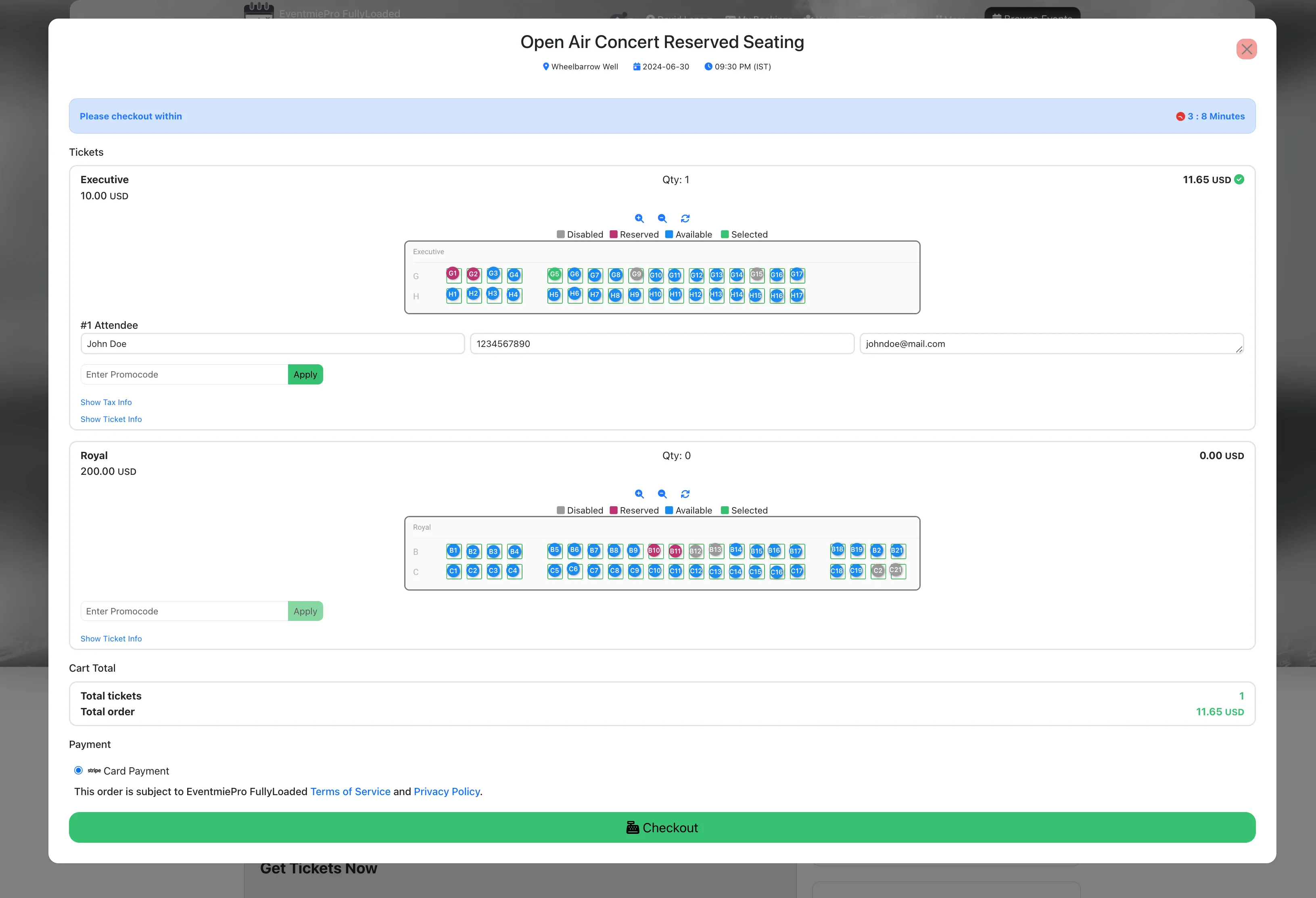
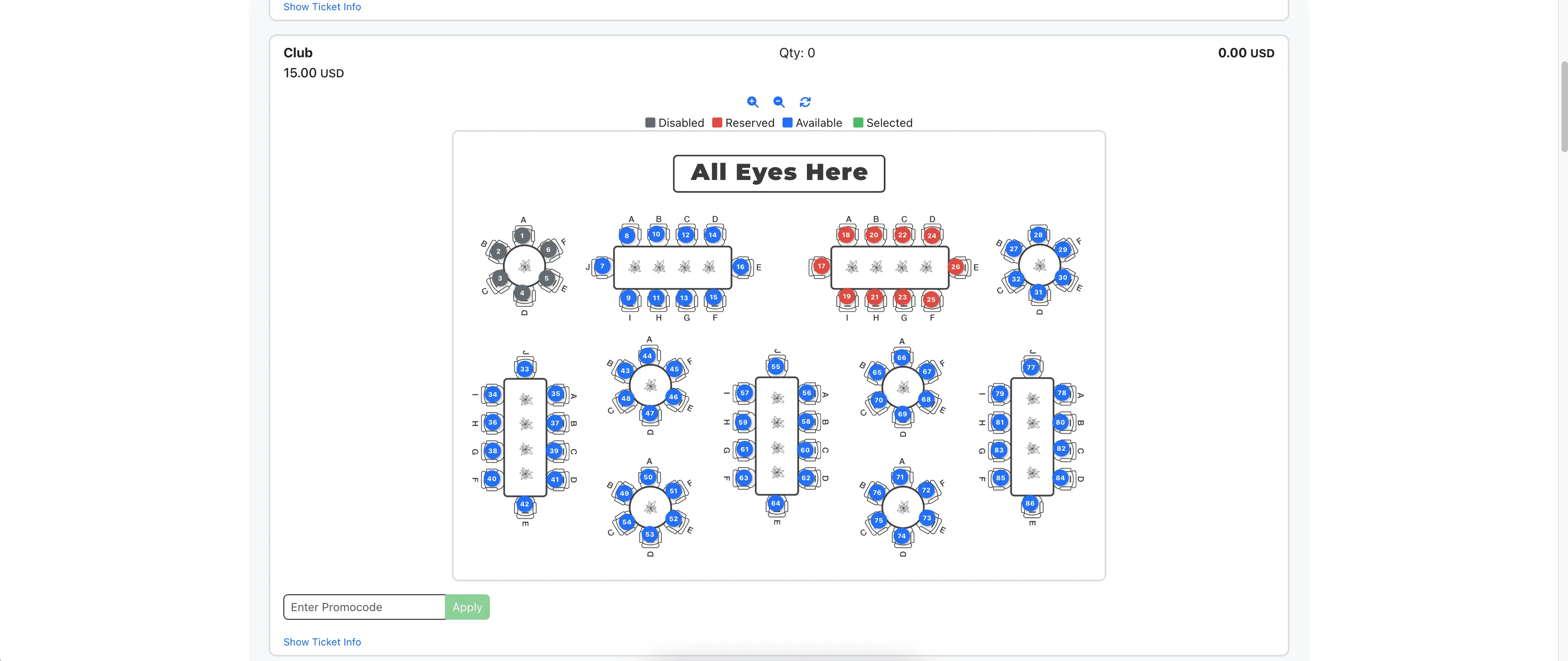
On the checkout popup, view the reserved seating chart for each ticket type.
-
Select seats to book and proceed to checkout. The system blocks the seat for 5 minutes, giving the customer time to complete the booking. During this period, no one else can book the same seat.
-
Legends show Reserved, Selected, Available, and Disabled seats for easy reference.
-
If booking multiple seats, each attendee's name, phone, and address must be entered.
-
Organizer and Admin can view attendee details from the Booking Detail page.

