Event Ticket Booking & Checkout System
Webworks Co offers a seamless, secure, and ultra-fast event ticket booking experience, setting a new standard in the industry and matching the efficiency of platforms like Eventbrite and Ticketmaster. Our advanced checkout system is engineered to maximize conversion rates while supporting a wide range of business models and payment options.
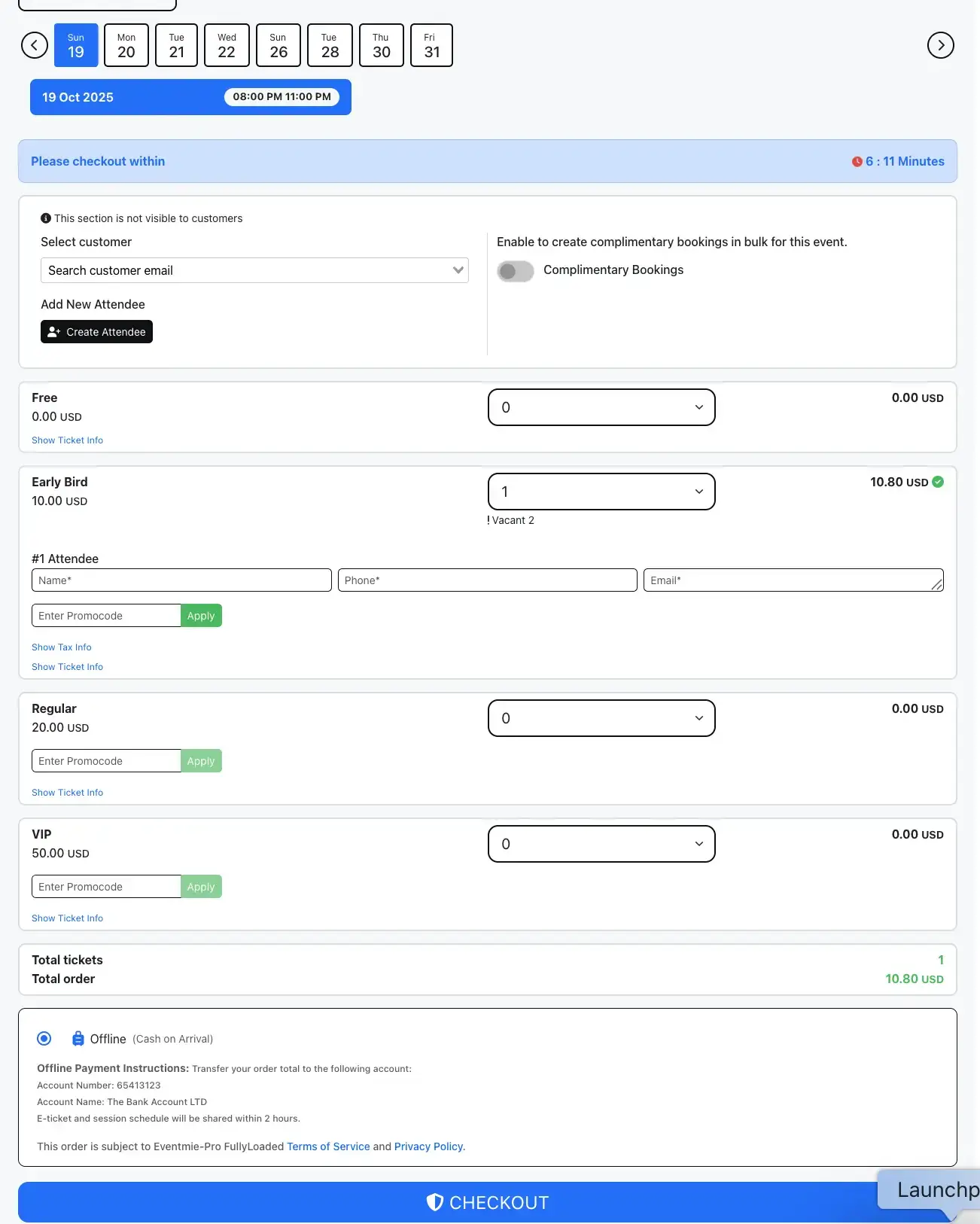
With v2.0, we introduced a time-bound checkout system featuring an 8-minute timer. This ensures that once tickets or seats are selected, they are reserved exclusively for the attendee, giving them ample time to complete their purchase—even during high-demand events—without the risk of tickets selling out mid-checkout.
In , we've further enhanced the user experience by streamlining the checkout process. The checkout popup is now fully integrated within the event page, reducing the steps required to complete a booking. Simply visit the event page, choose your preferred date, select one or multiple tickets and quantities, and proceed to checkout—all in just three easy steps.
Why Choose Webworks Co 's Booking System?
The booking system is designed for:
-
High-Conversion Checkout: Optimized flow reduces cart abandonment and maximizes ticket sales
-
Multi-Role Support: Flexible booking permissions for every role:
- Customers can book tickets for themselves.
- Organizers can book tickets on behalf of customers, but only for their own events.
- Admins have full access to book tickets for any customer and any event.
- POS (Point of Sale) Staff assigned to specific events can make bookings for customers directly at the event venue using offline payment methods (e.g., cash).
- All administrative roles (Organizer, Admin, POS) can also create new customer accounts instantly during the checkout process, streamlining on-the-spot bookings and walk-ins.
-
Flexible Payment Options: Support for free, offline, and online payments with major gateways
-
Time-Bound Reservations: 8-minute checkout timer prevents ticket hoarding during high-demand sales
-
Real-Time Inventory Management: Instant ticket availability updates across all channels
-
Comprehensive Tracking: Detailed booking status and payment tracking for business intelligence
-
Mobile-First Design: Responsive checkout that works perfectly on all devices
-
Enterprise Security: PCI-compliant payment processing with fraud protection
Booking Roles & Permissions
Webworks Co supports four distinct booking scenarios, each with specific permissions and use cases:
-
Customer Self-Booking: Individual attendees, group bookings, corporate events, public events
-
Organizer-Assisted Booking: VIP customer service, corporate accounts, special accommodations, bulk purchases
-
POS-Box Office Booking: Cash-based bookings, new customer creation, control over offline payments, instant ticket printing.
-
Admin-Managed Booking: Customer support, refund processing, corporate partnerships, special promotions
{primary} Pro Tip: The 8-minute checkout timer is crucial for high-demand events. It prevents ticket scalping while giving genuine customers time to complete their purchase.
- Customer Online Booking
- Organizer-Assisted Booking
- Admin-Managed Booking
- Payment Options
- Booking Status Management
- Advanced Booking Process
- Advanced Ticketing with FullyLoaded
Customer Online Booking
Customers can book event tickets independently through an intuitive, conversion-optimized checkout process designed to minimize friction and maximize completion rates.
Step-by-Step Booking Process
- Event Discovery: Navigate to the event page and review details, pricing, and availability
- Date & Time Selection: Select the date and time of the event you want to attend.
- Ticket Selection & Quantity: Select tickets along with quantity.
- Payment Method Selection & Checkout: Choose from available payment options (Free, Offline, or Online) and click Checkout.
- Download Tickets: Receive a booking confirmation email with the tickets attached. You can also download the tickets from the booking page.
Organizer-Assisted Booking
Organizers can provide personalized booking assistance for their events, enabling premium customer service and handling special requests that require human intervention.
Step-by-Step Process
- Event Discovery: Navigate to the event page and access the booking section.
- Customer Selection: Click on the event date and enter the customer's registered email in the
Select Customerauto-complete dropdown. You can also create a new customer by clicking on theCreate New Attendeebutton. - Ticket Configuration: Select appropriate ticket quantity and any special options
- Payment Handling: Choose appropriate payment method based on customer preference. You can also select Offline payment method to make booking without payment. And you can change Booking status to Paid after receiving payment. By default, the bookings made via Offline payment method are set to Unpaid.
- Booking Confirmation: Customer receives a booking confirmation email with the tickets attached. You can also download the tickets from the booking page. And you can also resend the tickets to the customer from your dashboard.
{primary} Security Note: Customers remain private to organizers. Organizers must enter the full customer email address to make bookings, ensuring customer privacy and data protection compliance.
Business Value & Use Cases
- VIP Customer Service: Personalized assistance for high-value customers
- Corporate Accounts: Bulk bookings for business clients and partners
- Special Accommodations: Handling accessibility requests and special needs
- Group Discounts: Managing group rates and bulk purchase arrangements
- Customer Support: Resolving booking issues and providing assistance
- Last-Minute Sales: Capturing walk-up customers and phone orders
Security & Privacy Features
- Customer Privacy: Organizers cannot view all customers; they must know the specific email address
- Event-Specific Access: Organizers can only book for their own events
- Audit Trail: Complete logging of all organizer-assisted bookings
- Permission Controls: Granular access controls for different organizer roles
Admin-Managed Booking
Administrators have comprehensive booking capabilities across all events, enabling platform-wide customer support, corporate partnerships, and special promotional activities.
Step-by-Step Administrative Process
- Event Discovery: Navigate to the event page and access the booking section
- Customer Selection: Click on the event date and enter the customer's registered email in the
Select Customerauto-complete dropdown. You can also create a new customer by clicking on theCreate New Attendeebutton. - Ticket Configuration: Select appropriate ticket quantity and any special options
- Payment Handling: Choose appropriate payment method based on customer preference. You can also select Offline payment method to make booking without payment. And you can change Booking status to Paid after receiving payment. By default, the bookings made via Offline payment method are set to Unpaid.
- Booking Confirmation: Customer receives a booking confirmation email with the tickets attached. You can also download the tickets from the booking page. And you can also resend the tickets to the customer from your dashboard.
{success} Admin Tip: Use the
Admin Panel -> Userspage to find customer emails and manage customer relationships effectively.
{primary} Payment Restriction: Admins are limited to Free or Offline payment options to prevent internal payment processing conflicts.
Administrative Use Cases
- Customer Support: Resolving booking issues and providing assistance
- Corporate Partnerships: Managing bulk bookings for business clients
- Special Promotions: Handling promotional codes and discount applications
- Refund Processing: Managing cancellations and refund requests
- Data Management: Exporting booking data for analysis and reporting
- Platform Management: Overseeing booking patterns and system performance
Administrative Tools & Capabilities
- Customer Lookup: Access to complete customer database via
Admin Panel -> Users - Event Access: Ability to book tickets for any event on the platform
- Payment Flexibility: Support for free and offline payment options
- Reporting Access: Comprehensive booking analytics and reporting tools
- System Oversight: Monitor booking patterns and identify optimization opportunities
Payment Options & Processing
Webworks Co supports multiple payment methods to accommodate diverse business models and customer preferences, ensuring maximum accessibility and conversion rates.
Free Ticket Processing
Free events, promotional activities, educational content, community gatherings
- Instant booking confirmation
- No payment gateway required
- Immediate ticket delivery
- Zero transaction fees
- Perfect for lead generation and community building
Offline Payment Processing
Offline (Cash on Arrival) allows you to make a paid booking without online payment, such as booking premium/paid tickets without using a payment gateway.
- Organizers & Admins can book tickets for customers directly, without online payment.
- Payment can be collected via external sources or in cash.
{success} Admins can disable the
Offline Payment OptionforCustomersandOrganizersfrom theAdmin Panel -> Settings -> Bookingstab.

{success} Configuration: Admins can disable offline payments for customers and organizers via
Admin Panel -> Settings -> Bookingstab.
{primary} Localization: All payment-related text can be customized through language files for international markets.
Online Payment Processing
Standard ticket sales, international events, automated processing, high-volume sales
- PayPal Express Checkout: Industry-standard secure payment processing
- More Payment Gateways: Stripe, Authorize.net, Bitpay, Paystack, MercadoPago, PayTM & Razorpay available in FullyLoaded.
- Additional Gateways: Additional payment gateways can be integrated via customisation.
- Multi-Currency Support: International payment processing capabilities
- Fraud Protection: Built-in security measures and fraud detection
{success} Custom Integration: Need additional payment gateways? Contact us at
info@WebworksCo .comfor custom development and integration services.
Booking Status Management
Webworks Co 's intelligent booking status system provides clear visibility into payment status and enables proper access control for different ticket types and events.
Payment Status Tracking
The Is Paid status indicator provides real-time visibility into payment completion:
| Payment Method | Default Status | Business Impact |
|---|---|---|
| Free Checkout | Always Yes |
Immediate access to tickets and tickets can be scanned & verified via Ticket Scanner |
| Online Payment | Always Yes |
Instant confirmation and access to tickets and tickets can be scanned & verified via Ticket Scanner |
| Offline Payment | Always No |
Requires manual payment confirmation and tickets CANNOT be scanned & verified via Ticket Scanner until payment is confirmed Is Paid = Yes |
Status Management Workflow
- Initial Booking: Status automatically set based on payment method
- Payment Confirmation: Admins/organizers update status for offline payments. You can also change the booking status to Paid after receiving payment.
- Access Control: Customers gain access to tickets and event details upon payment confirmation. (Is Paid = Yes)
{primary} Access Control: Customers with
Is Paid = Nocannot download tickets or access online event details, ensuring proper revenue protection.
Advanced Booking Process Architecture
Webworks Co 's booking system employs a sophisticated microservices architecture that ensures reliability, scalability, and optimal user experience across all touchpoints.
Pre-Booking Process (Frontend)
The pre-booking phase handles user interaction and payment processing:
- Progress Initialization: Display checkout progress indicators for user confidence
- Validation Engine: Comprehensive validation of booking parameters and availability
- Payment Processing: Secure transaction handling with real-time confirmation
- Booking Confirmation: Instant success notification and redirect to booking management
- Error Handling: Graceful error management with clear user feedback
Post-Booking Process (Backend)
The post-booking phase manages ticket generation and communication:
- Progress Tracking: Visual feedback for post-booking operations
- Ticket Generation: Automated PDF creation with branding and security features
- Communication Engine: Multi-channel notifications to all stakeholders
- Process Completion: Final confirmation and system updates
System Benefits & Architecture Advantages
- Independent Processing: Pre and post-booking processes operate independently for maximum reliability
- Faster Checkout: Optimized flow reduces abandonment and improves conversion rates
- Fault Tolerance: Email failures don't impact core booking functionality
- Clear Tracking: Detailed process logging enables precise support and troubleshooting
- Scalability: Microservices architecture supports high-volume event sales
Performance Optimization
- Caching Strategy: Intelligent caching reduces database load and improves response times
- Queue Management: Background processing for non-critical operations
- Load Balancing: Distributed processing for high-traffic events
- Monitoring: Real-time performance monitoring and alerting
{primary} Support Integration: Detailed process tracking enables precise issue identification and resolution for customer support teams.
Advanced Ticketing with FullyLoaded
Webworks Co is great but Webworks Co FullyLoaded booking system provides comprehensive data and insights to optimize your event business and drive strategic decisions.
Webworks Co FullyLoaded is a premium version of Webworks Co that includes advanced ticketing capabilities that rival enterprise event platforms.
Ticket Management
- Flexible Ticket Types: Paid, free, donation-based, and complimentary tickets
- Dynamic Pricing: Time-based pricing and early bird discounts
- Group Tickets: Consolidated ticketing for group purchases
Advanced Ticket Scanner
- Hands-Free Scanning: Self-scanning kiosks for efficient check-in without any manual intervention.
- Duplicate Prevention: Advanced algorithms prevent ticket duplication
- Access Control: Time-based ticket validation
Customer Experience
- Minimal Ticket Design: Clean, print-friendly PDF tickets
- Mobile Optimization: Digital tickets accessible on all devices
- Multi-Day Support: Comprehensive support for multi-day events
- Early Check-in: Pre-event check-in capabilities for large events
Administrative Tools
- Ticket Resend: Easy ticket resending for lost or misplaced tickets
- Attendee Management: Comprehensive attendee database and management
- Bulk Operations: Mass ticket operations for large events
Troubleshooting & Support
Common Issues & Solutions
Q: Why is the checkout timer not appearing? A: The 8-minute timer only appears for paid tickets. Free tickets process instantly without reservation.
Q: Can I extend the checkout timer for specific events? A: Contact our support team for custom timer configurations for high-value events.
Q: How do I handle failed payments? A: Failed payments automatically release reserved tickets. Customers can retry with different payment methods.
Q: What happens if a customer doesn't complete checkout in time? A: Reserved tickets are automatically released and made available to other customers.
Q: How do I integrate with my existing payment processor?
A: Contact us at info@WebworksCo .com for custom payment gateway integration.