{success} This Feature only available in Webworks Co FullyLoaded
Stripe 3D Secure Checkout Payment Gateway for Webworks Co FullyLoaded
Why It Matters
Reliable payments are the heart of every successful event. With Stripe 3D Secure Checkout, guests complete bookings with confidence, organizers reduce failed transactions, and your team spends less time on payment follow‑ups. This means higher conversion at checkout, fewer support requests, and a smoother ticketing experience from start to finish.
Integrate Stripe 3D Secure Checkout to accept secure online payments in your Webworks Co FullyLoaded event management platform. Follow this simple guide to turn on Stripe, add your keys, and connect payment alerts for dependable booking confirmations.
To start accepting Stripe payments, first create a Stripe Merchant Account at Stripe. After setting up your account, copy your Stripe Public Key and Stripe Secret Key.

- Go to Admin Panel -> Settings -> Apps
- Enter your
Stripe Public Key&Stripe Secret Keyand click Save Settings
You can use Stripe Test keys to try payments with Stripe Test Cards, or Stripe Live keys to accept real payments from customers.
{primary} To disable Stripe, simply remove the
Stripe Public Key&Stripe Secret Keyfrom your settings.
Stripe Payment Alerts (Automatic Confirmations)
In Webworks Co FullyLoaded and above, Stripe payment alerts help prevent failed payments and missed bookings. Even if a guest closes the payment tab or loses internet right after paying, your website will still confirm the booking automatically through Stripe’s payment notifications.
How to Turn On Stripe Payment Alerts in Webworks Co FullyLoaded
- Go to Admin Panel -> Settings -> Apps
- Enter your LIVE
Stripe Public Key&Stripe Secret Keyand click Save Settings - Open your web hosting/cPanel, and open Terminal in your website root directory (usually
public_html) -
Run the following command to connect your website with Stripe payment alerts:
php artisan cashier:webhook
{warning} Run the above command only on your live domain and with live Stripe keys for real payments.
Finish Setup in Your Stripe Dashboard
After the above steps, complete the payment alert setup in your Stripe dashboard:
-
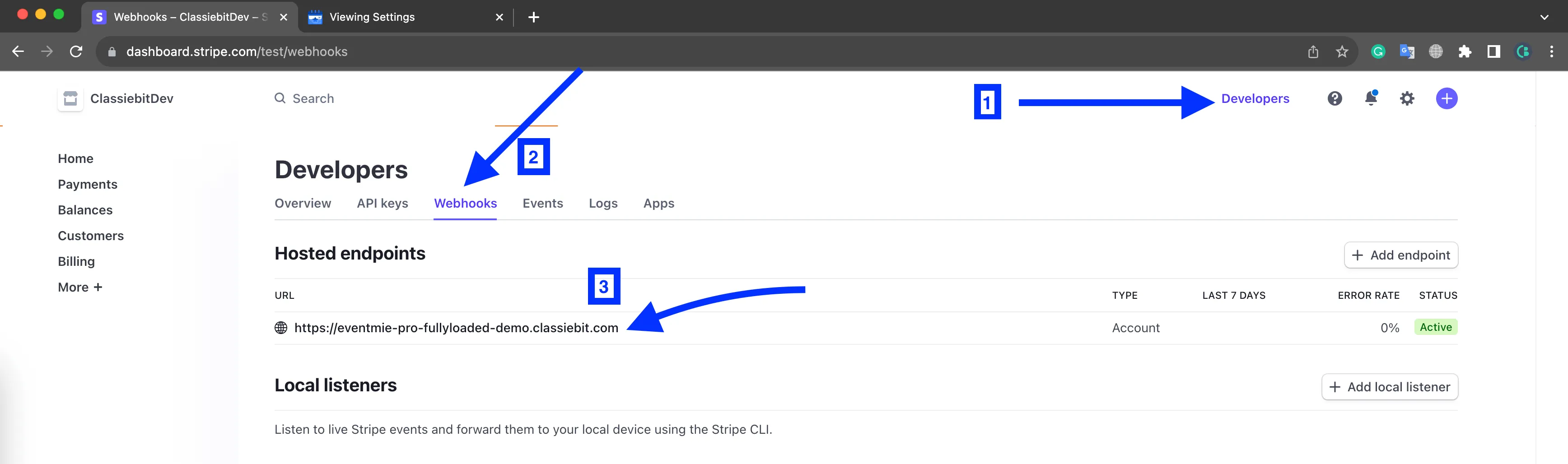
Go to Developers -> Webhooks tab -> Click Hosted Endpoint URL. See screenshot below:
-
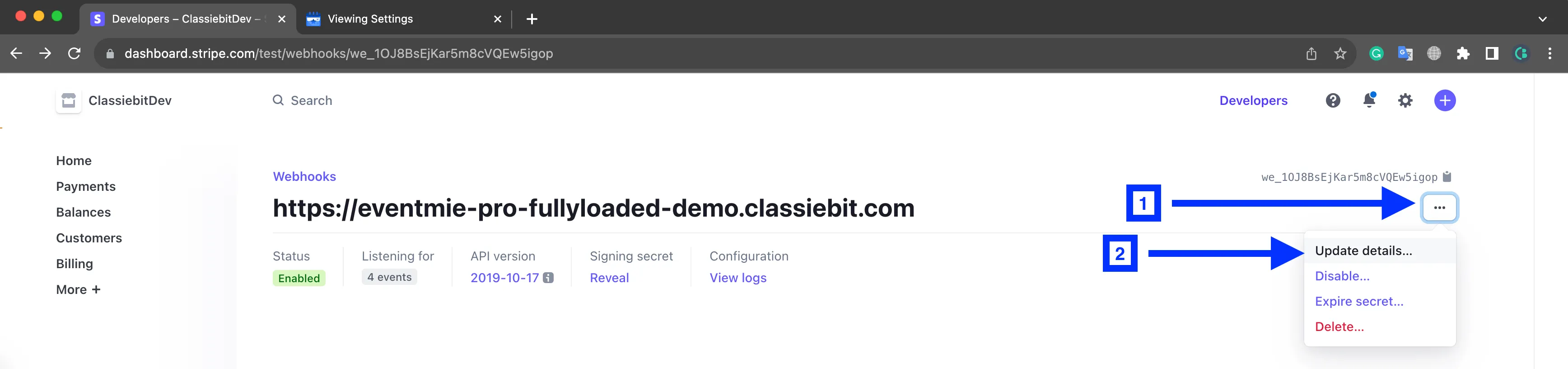
Click the 3 Dots on the right -> Click Update Details. See screenshot below:
-
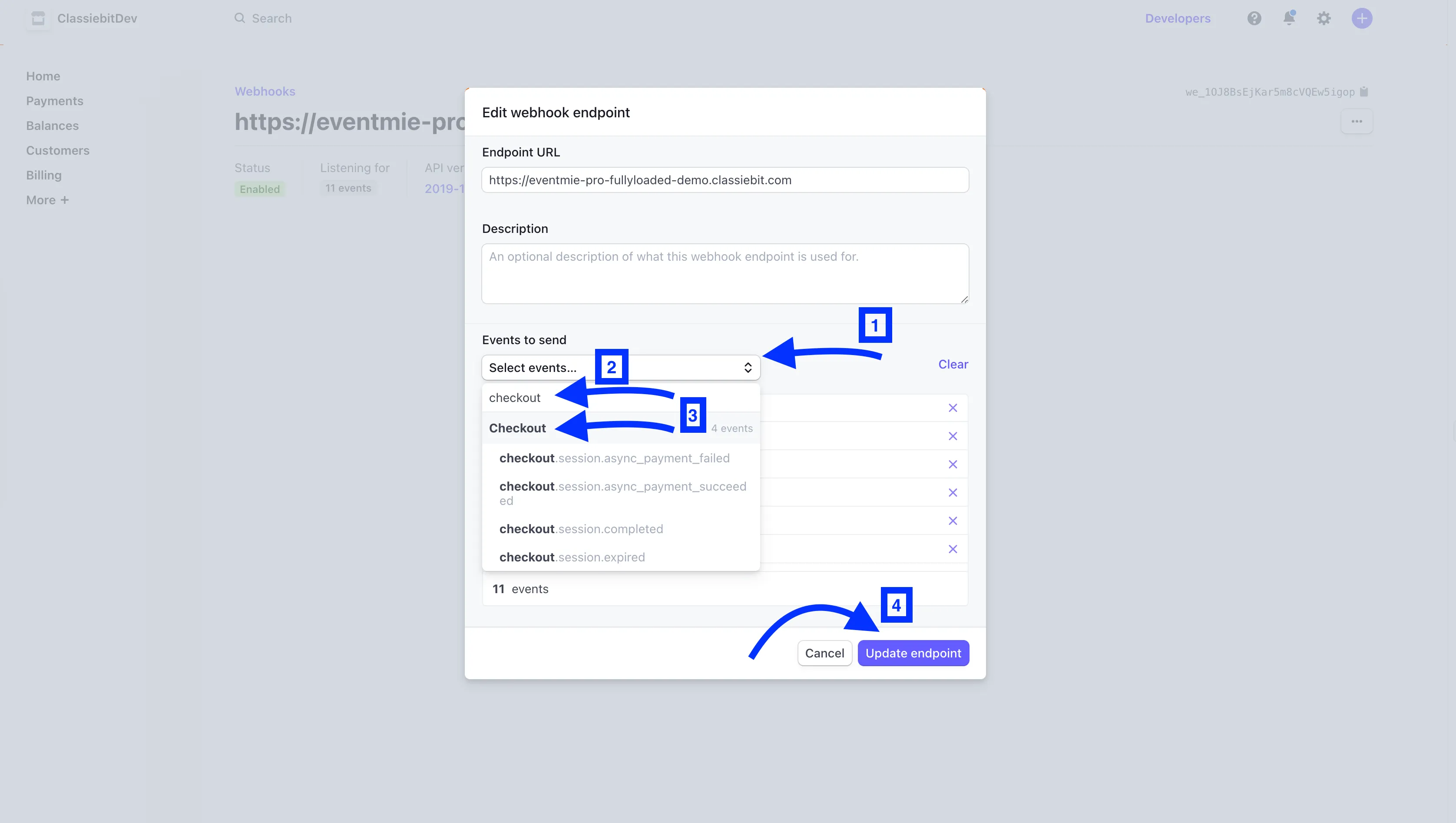
Click on Select Events dropdown -> Search for Checkout -> Select all Checkout events -> Click Update Endpoint.
-
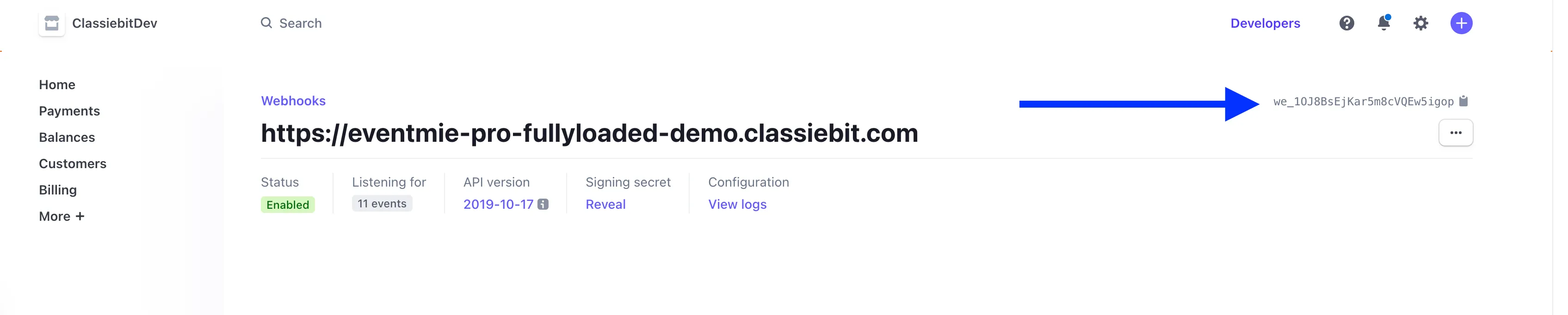
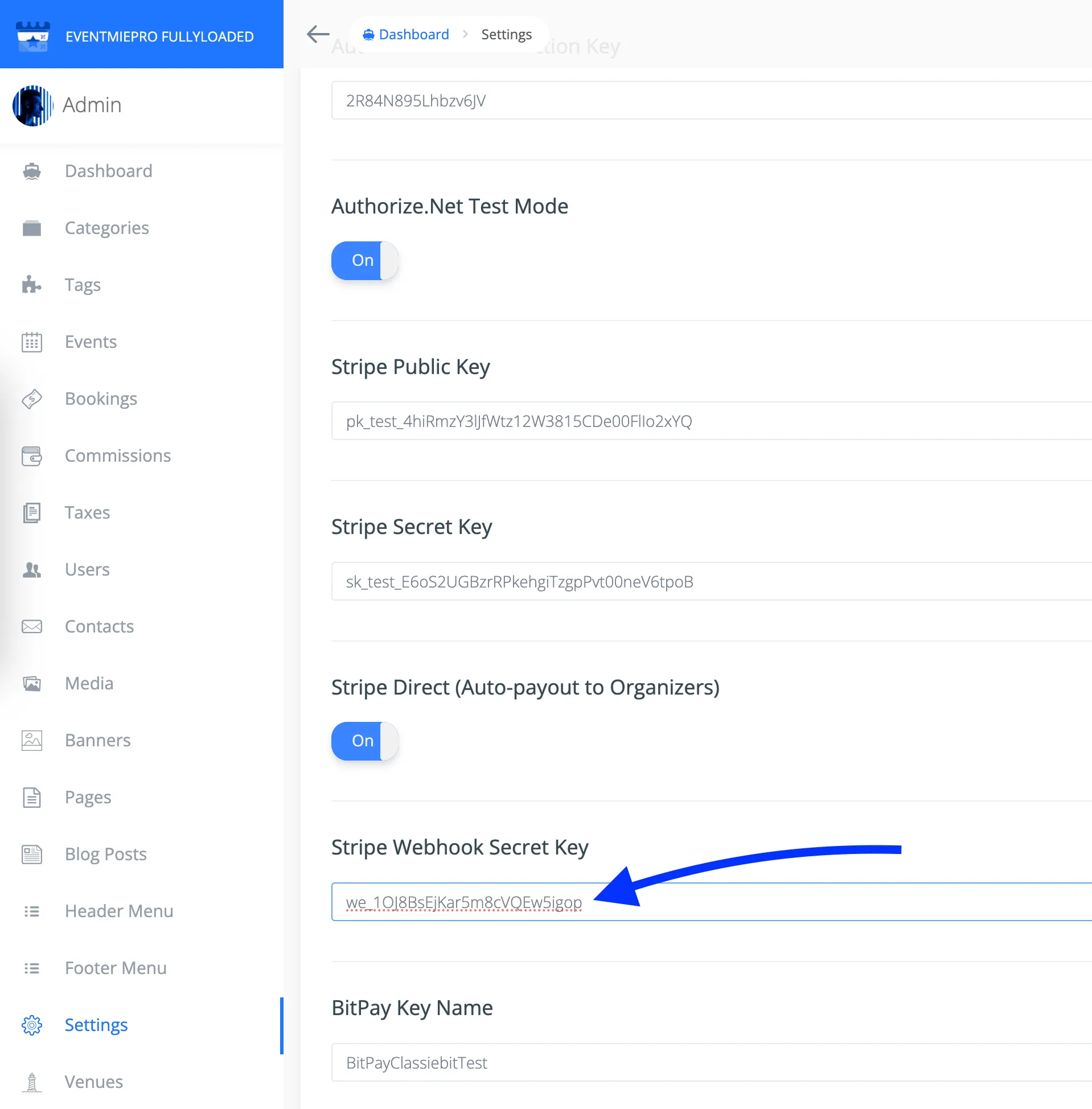
Copy the webhook secret key from the right side and add it to your website Admin Panel.
-
Go to website Admin Panel -> Settings -> Apps -> Stripe Webhook Secret Key
{success} All set! After each successful payment, you’ll see the confirmation in Stripe’s payment alerts page, and bookings will be confirmed automatically on your Webworks Co FullyLoaded website.