Menu Builder: Custom Navigation for a World-Class Event Experience
Easily create, manage, and optimize your event website's navigation with the Menu Builder. Design custom header and footer menus to highlight key pages, drive conversions, and deliver a seamless user experience—on any device, in any language.
Why Custom Menus Matter:
- Enhanced User Experience: Help visitors find what matters most—fast.
- SEO Optimization: Structure your site for better search engine rankings and discoverability.
- Branding & White-Labeling: Tailor navigation to match your brand or client requirements.
- Localization: Support global audiences with multilingual menus.
- Conversion Focus: Surface high-value actions (e.g., Buy Tickets, Host an Event, Contact) to boost engagement and sales.
- Accessibility: Ensure navigation is usable by everyone, including those with disabilities.
Common Use Cases
- Public Event Marketplaces: Feature event categories, trending events, and calls to action like "Host an Event" or "Buy Tickets."
- Corporate/Internal Events: Custom navigation for schedules, resources, and internal policies.
- Multi-Language/Global Events: Menus tailored for different languages and regions.
- Agency/White-Label Deployments: Branded navigation for client or partner sites.
- SEO-Driven Sites: Menus linking to landing pages, blog posts, and high-conversion content.
Header Menu
From Admin Panel → Header Menu, add and organize menu items for your website's main navigation. This helps users quickly find important pages and enhances your site's SEO structure.
- Add links to internal pages, custom URLs, or external resources.
- Drag and drop to reorder or nest items (up to 2 levels for optimal usability).
- Assign icons or labels for visual clarity.
- Preview changes instantly before publishing.
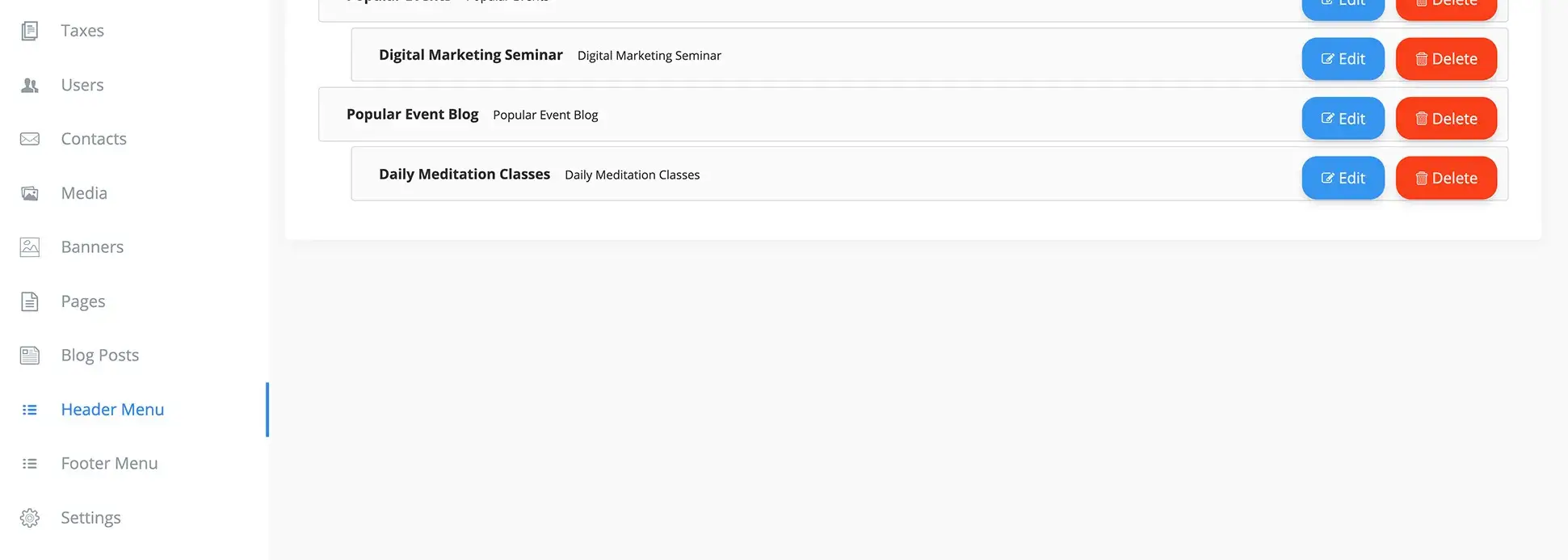
{success} Multilingual Support: Add menu items in multiple languages. Use the language tabs to translate and localize your navigation for global audiences.
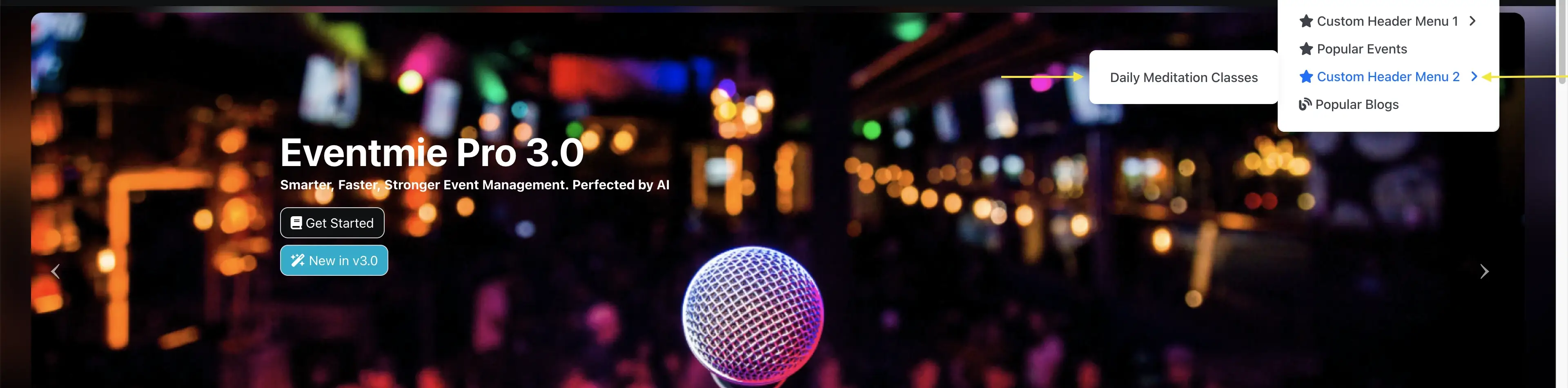
Your custom header menu will appear on the Frontend → Header for all users.
Footer Menu
From Admin Panel → Footer Menu, add and manage footer menu items to provide quick access to important pages, policies, and external resources.
- Highlight privacy policies, terms, support, and contact links.
- Organize links for easy navigation and compliance.
- Use for SEO by linking to key landing pages and resources.
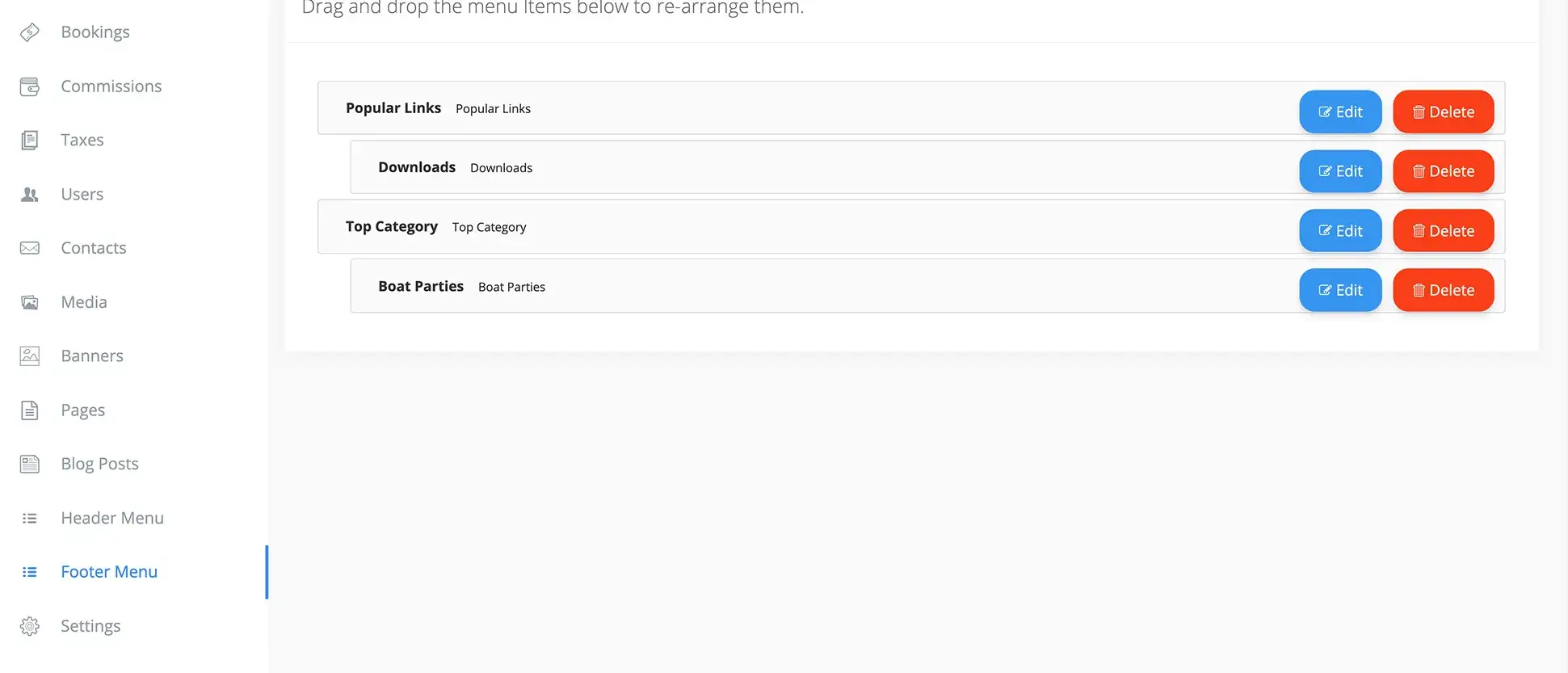
Your custom footer menu will be displayed on the Frontend → Footer for easy navigation and enhanced user experience.
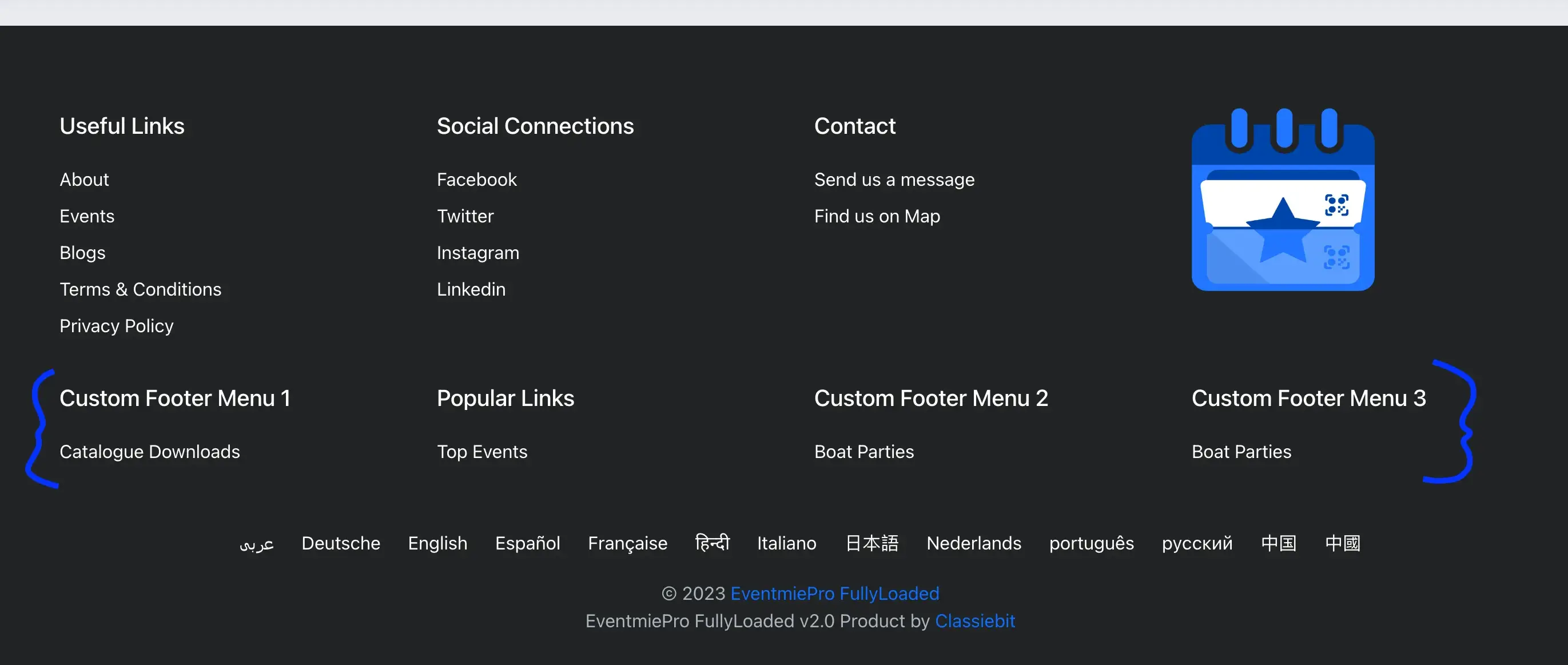
{info} Menu Depth: Only up to two levels of menu and sub-menu are supported for optimal usability, accessibility, and design.
Best Practices & Tips
- Use clear, descriptive labels for all menu items.
- Limit menu depth to two levels for best usability.
- Test menus on mobile devices for responsiveness.
- Ensure accessibility: All menu items should be keyboard and screen reader accessible.
- Update menus regularly to reflect new features, events, or promotions.
- Track menu link clicks with analytics tools to optimize navigation and conversions.
- Cross-link to important pages, policies, and support resources.
Troubleshooting & FAQ
Q: Why aren't my menu changes showing on the frontend? A: Make sure you've saved and published your changes. Clear your site cache if needed.
Q: Can I add more than two levels of sub-menus? A: For optimal usability and design, only two levels are supported.
Q: How do I add custom pages or external links? A: Use the "Add Link" option and specify the URL or select from your site's pages.
Q: How do I localize menus for different languages? A: Use the language tabs in the menu builder to add translations for each menu item.