Commissions & Payouts Management
A flexible, transparent commission and payout system is essential for building trust, attracting organizers, and scaling your event platform. Webworks Co & FullyLoaded offers industry-leading commission management—supporting both single-organization and multi-vendor (marketplace) business models, with options for 0% commission, custom admin fees, and seamless payout tracking.
{primary} Why It Matters: Leading event platforms (Webworks Event app, Universe, Ticketmaster) use robust commission and payout systems to incentivize organizers, maximize platform revenue, and ensure regulatory compliance.
- How Commissions Work
- Commission Setup
- Commission Processing & Payouts
- Commission Calculations & Scenarios
- Refunds & Settlements
- Organizer Bank Details
- Cancelled Bookings
- Multi-Vendor & Single-Org Modes
- Become Organiser
- Zero Commission Use Cases
How Commissions Work
- Multi-Vendor Model: Invite organizers to sell events on your platform. Set a commission percentage to share profits and attract more organizers.
- Single-Organization Model: Run your own events and keep 100% of ticket sales, or set custom admin fees for internal accounting.
- Flexible Admin Fees: Offer 0% commission to attract new organizers, or set custom rates for premium support, marketing, or platform maintenance.
- Semi-Automatic System: All payments are credited to the Admin account. Admins manually process payouts and update transfer statuses for full control and compliance.
Commission Setup
Set your commission percentage in just a few clicks:
- Go to
Admin Panel → Settings → Multi-vendortab. - Set the
Admin Commission(e.g., 5 for 5%).
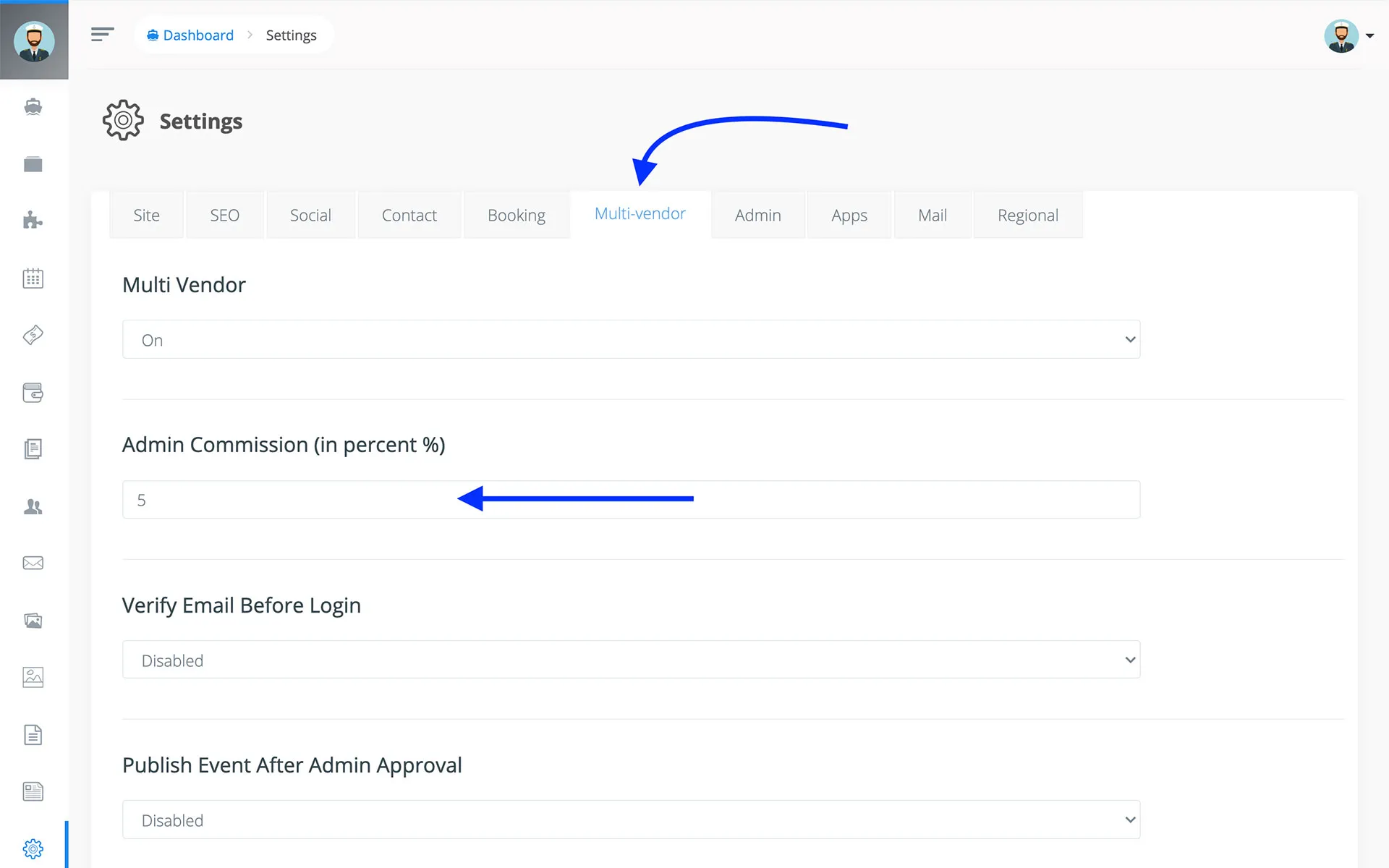
{primary} Commissions are only recorded if Multi-vendor mode is ON and Admin Commission is set.
Commission Processing & Payouts
Webworks Co will automatically record commissions on every ticket sale, including when you offer 0% Commission on Ticket Sales.
-
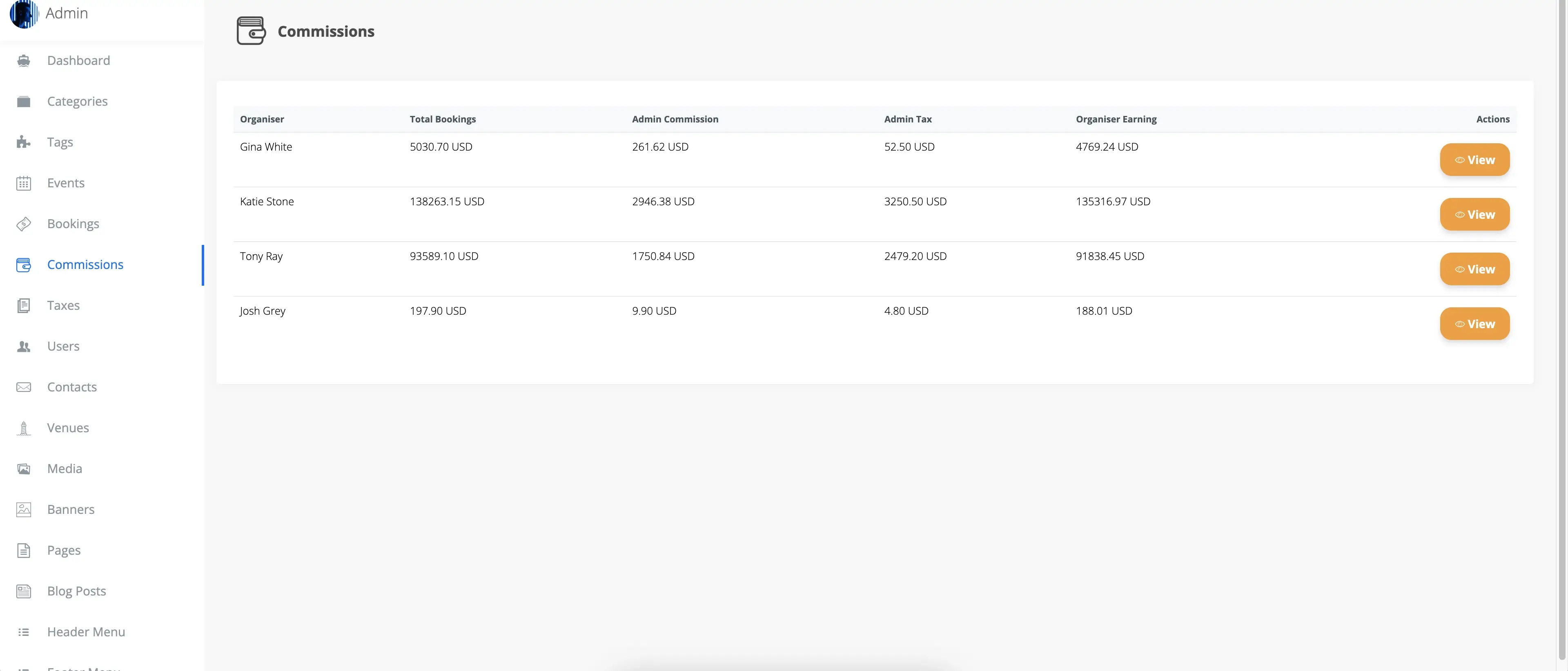
Go to
Admin Panel -> Commissions. -
Click on
View
-
View each organizer's monthly
Total Bookings,Organizer earnings, andAdmin Commission. -
After transferring an organizer's payout for a particular month, check the
Transferredcheckbox and clickUpdate to update the transfer status. - Mark payouts as transferred and keep a full audit trail for compliance and transparency.

{success} This allows you to keep a record of all organizer payout transfers, even when operating with 0% Commission on Ticket Sales.
{success} Best Practice: Keep detailed payout records for every organizer to build trust and simplify accounting.
{primary} Tip: Offer 0% commission to select organizers or for special campaigns.
Commission Calculations & Scenarios
Webworks Co supports a wide range of commission and payout models:
| Payables | Rates | Calculations | Total |
|---|---|---|---|
| Ticket Price (TP) | $100 | $100 | $100 |
| Organizer Tax (OT) | 5% + 5% | (5% of $100) + (5% of $100) | $10 |
| Admin Commission (AC) | 5% | 5% of ($100 + $10) | $5.5 |
| Admin Tax (AT) | 3% + 3% | (3% of $100) + (3% of $100) | $6 |
{primary} Formula: Admin Commission = % of (Ticket Price + Organizer Tax). Admin Tax is not included in organizer earnings.
{primary} Admin Tax is not included in Organizer earnings. It goes directly to the Admin account.
| Total Customer Paid | Total Organizer Earning | Total Admin Commission |
|---|---|---|
| TP + OT + AC + AT | (TP + OT) - AC | AC + AT |
| $100 + $10 + $6 + $5 = $121 | $110 - $5.5 = 104.5 | $5.5 + $6 = $11.5 |
- Online Payments: Marked as paid automatically. Offline/Direct payments must be marked as paid by Admin/Organizer.
- Un-Transferred Payouts: New bookings after a payout is marked transferred appear as new entries for the same month.
- Floating-Point Precision: All calculations are accurate, even for 0% commission scenarios.
Refunds & Settlements
Handle refunds and cancellations with full transparency:
- Refunded bookings after payout are tracked in Refund Settlement and must be claimed back from the organizer.
- Mark refund settlements as claimed for accurate financial records.

Organizer Bank Details
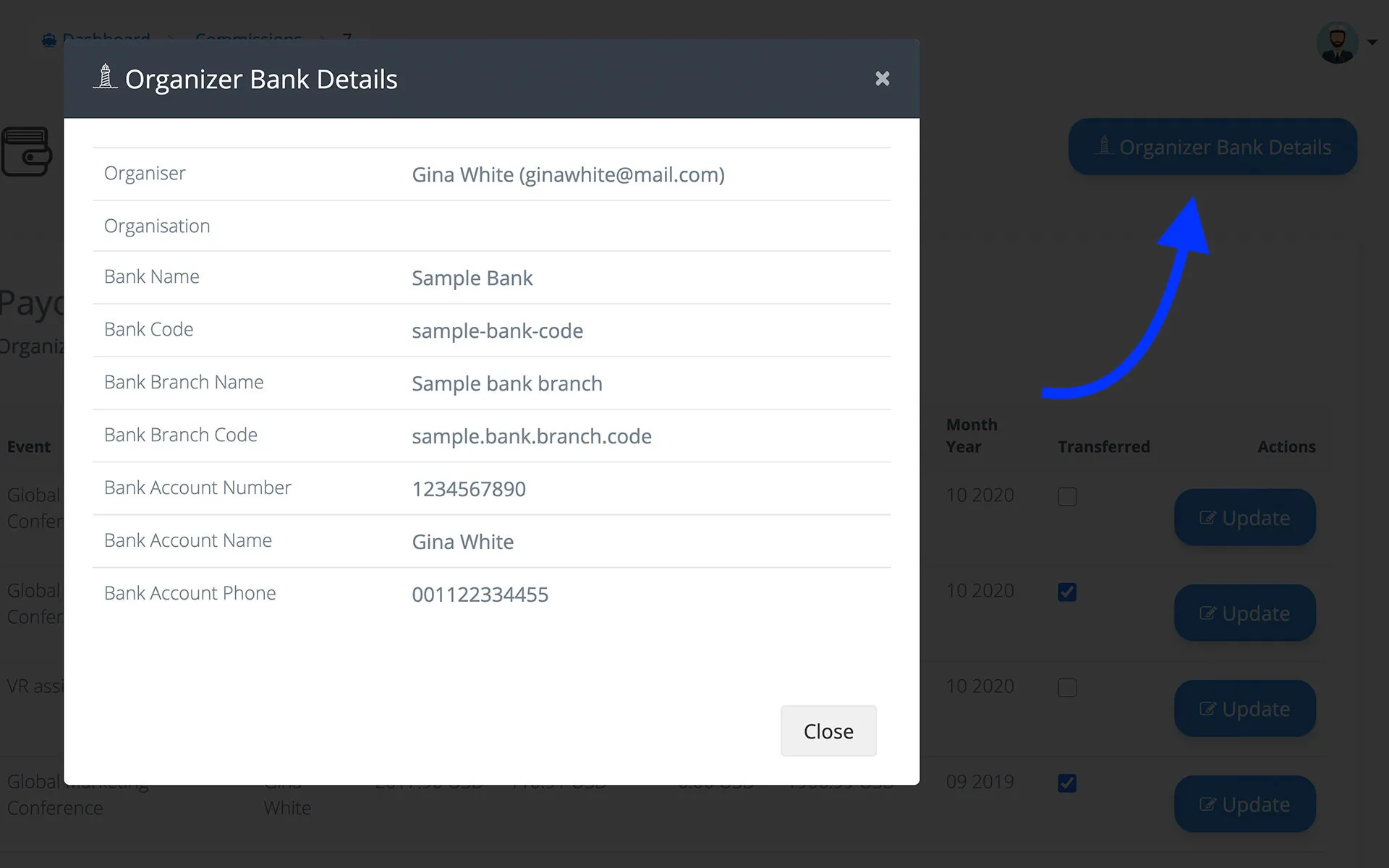
Streamline payouts by collecting organizer bank details directly from their profile page. Admins can view these details in the Commissions panel for fast, secure transfers.

Cancelled Bookings
Cancelled bookings are automatically excluded from organizer earnings and commission calculations.
{primary} Always set the booking status to Disabled after processing a refund to ensure accurate records.
Multi-Vendor & Single-Org Modes
Webworks Co supports both single organization and multi-organization (multi-vendor, SaaS-style) event platforms. Toggle between these modes from the Admin Panel -> Settings -> Multi-vendor tab.
-
Multi-Vendor On (Marketplace):
- Organizers can sign up, create events, and receive payouts.
- Admin sets commission rates and manages all payouts.
- Organizers can never revert to customer status for security and audit purposes.
- Organizers can book events for others but not for themselves.
-
Multi-Vendor Off (Single-Organization):
- Admin manages all events and bookings.
- Organizers are created and managed by Admin only.
- All multi-vendor features are hidden from the front-end.
{success} Use Case: Use multi-vendor mode to build a marketplace like Webworks Event app. Use single-org mode for in-house event management or private ticketing platforms.
With multi-vendor mode enabled, users can sign up as customers and then become organizers, benefiting from features like 0% Commission on Ticket Sales.
- After signing up as a
customer, go toProfile. - Click on
Become Organizer - In the popup, enter your
Organization name/Brand nameand clickSubmit - After submission, the user's
Groupchanges fromCustomertoOrganizer.
When multi-vendor mode is Off, all options for Become Organizer, Create Event, or other multi-vendor features are hidden on the front-end. In this mode, Admin manages everything on behalf of organizers.
Admins can create a separate User from the admin panel and assign the Organizer - Role. Follow these steps:
- Go to
Admin Panel -> Manage Users. - Click on
Add New - Enter the organizer's name, email, and password (you can use your own).
-
Set the
Default RoletoOrganizer.
{primary} After creating an organizer, Admin can select the organizer wherever required.
Become Organiser
There are specific rules for what an Organizer CAN and CANNOT do:
- Organizer CANNOT revert to Customer. The process is irreversible.
- Organizer CAN create and manage their own events, but CANNOT book their own events.
- Organizer CAN book their own events for other customers (users) of the site.
- Organizer CAN book events for a customer ONLY IF they know the customer's email.
-
Organizers CAN manage bookings for their own events only.
{success} Organizers can perform these actions from the front-end, including benefiting from 0% Commission on Ticket Sales if enabled.
{primary} Admins have full access and can perform any action without limitations.
Zero Commission Use Cases
- Attract New Organizers: Offer 0% commission to onboard new organizers and grow your platform.
- Promotional Campaigns: Temporarily set commission to zero for special events or marketing pushes.
- Non-Profit & Community Events: Support charity or community events by waiving platform fees.
- Hybrid Models: Combine 0% commission with admin taxes or service fees for flexible revenue strategies.
All payout details, including 0% commission scenarios, are visible in the Admin Panel for full transparency.
{primary} Pro Tip: Regularly review your commission and payout settings to stay competitive, compliant, and attractive to top organizers—just like the industry leaders.